跨境独立站开店
Shopify shipping settings: How to set up detailed shipping rates by region, etc.
Setting appropriate shipping fees to ensure profitability is crucial when running an e-commerce site. Shopify offers a shipping profile feature that allows for detailed shipping fee settings based on factors such as region and purchase amount.





This guide explains how to set up shipping fees and create a shipping page on Shopify.
Setting appropriate shipping fees to ensure profitability is crucial when running an e-commerce site. Shopify offers a shipping profile feature that allows for detailed shipping fee settings based on factors such as region and purchase amount.
This article explains what you can do with shipping settings in Shopify, how to set shipping fees from the admin panel, and how to create a shipping page.
[Downloadable Document] For those who want to optimize their shipping settings / increase sales while reducing shipping costs
Shipping fee settings are a crucial factor that significantly impacts the profit margin and conversion rate of an e-commerce site.
Shopify allows you to set shipping costs not only as a flat rate nationwide, but also in detail based on delivery region, product weight and price, and shipping method, enabling flexible operation tailored to your company's sales model.
Furthermore, offering free shipping on orders over a certain amount and providing multiple shipping options can lead to an increase in the average purchase price and prevent cart abandonment.
This article provides a clear explanation of the shipping rules you can set up in Shopify, how to configure them, and how to create a shipping page.
If you'd like to optimize your Shopify shipping settings to match your company's sales conditions, please take advantage of our free consultation. We will review your shipping conditions and product lineup and propose the most suitable settings. We also have free materials available for those who want to learn more about Shopify's features and implementation methods. Please download them as a reference for using Shopify, including shipping settings.
What you can do with Shopify's shipping settings
Shopify offers four main pricing plans: Basic, Grow, Advanced, and Plus. The available shipping features differ slightly between the two plans. For example, "automatic shipping cost calculation using external shipping services" is standard in the Advanced and Plus plans. It's also available in the Grow plan by switching to an annual plan or paying an additional monthly fee.
This feature allows you to display shipping costs calculated by the shipping carrier's account or external app at checkout.
- Nationwide flat-rate shipping
- Shipping costs vary by region
- Free shipping
- Free shipping on purchases above a certain amount.
- Shipping costs vary by product weight.
- Shipping costs vary by product price.
- Shipping fees for specific items (e.g., refrigerated items, oversized items)
- Local delivery (direct delivery)
- Store pickup
- International shipping
Furthermore, by downloading the dedicated app, you can handle special cases such as changing shipping rates for certain areas, including remote islands within the same prefecture, or adjusting shipping costs when purchasing both chilled and room-temperature items simultaneously.
Furthermore, by using the delivery app "Plus Shipping," you can issue shipping labels and request deliveries from major delivery companies such as Yamato Transport and Sagawa Express directly from the management screen.
This app is free to use, and shipping fees will be offered at a special discounted price exclusively for users, so please take advantage of it.
Shipping profile automatically applies shipping fee rules.
You can save rules such as shipping costs by region and free shipping for orders above a certain price as "profiles." Profiles include "custom shipping profiles" that apply to specific items and "basic shipping profiles" that apply to all other items.
For example, if you have items such as frozen goods, you can create a custom shipping profile specifically for "cool delivery" and link it to your order so that shipping fees are automatically applied when you place an order. Also, when you add new products to your store, the "basic shipping profile" will be applied until you change the linked profile.
[Download Document] Are you struggling to improve customer satisfaction while maintaining profit margins?
Shopify allows you to set a variety of shipping rules, including shipping fees based on delivery region, weight, order amount, and free shipping conditions.
Additionally, it's possible to offer multiple shipping methods and set different shipping fees for each delivery area.
By flexibly setting shipping fees according to product characteristics and delivery costs, you can improve customer satisfaction while maintaining profit margins.
If the number of orders increases and it becomes difficult to handle shipments in-house, outsourcing logistics operations is an option. Please also refer to our "Complete Guide to EC Logistics Outsourcing: A Thorough Explanation of Major Companies, Costs, and Contract Flow."
How to set up shipping costs on Shopify
General methods for setting shipping costs
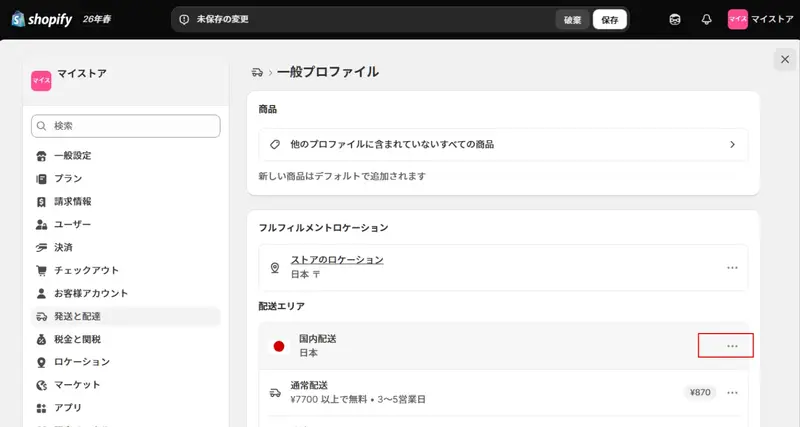
If you want to apply the same shipping fee to many products, you can do so in the "Basic Profile." Here's an example of setting a flat shipping fee of 800 yen for all products within Japan.
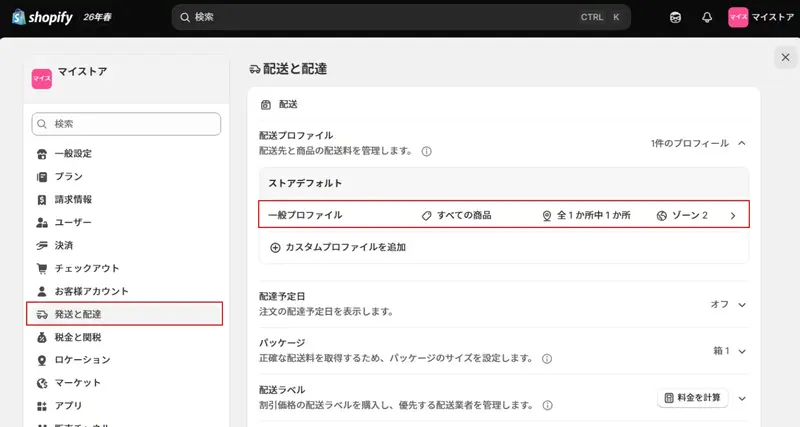
From the Shopify admin panel, go to "Settings" > "Shipping & Delivery" and click on "General Profile" in the "Shipping Profile" section.
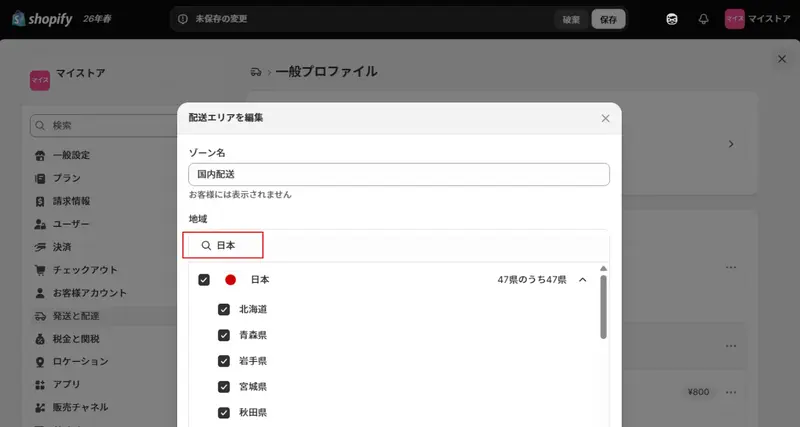
If a delivery area within Japan has already been added, click the "..." next to it and select "Edit Area". Make sure all 47 prefectures of Japan are selected and click "Done".
If your delivery area in Japan is not listed, click "Add Area." Enter a name for your delivery area, select all 47 prefectures of Japan as the target region, and click "Done."
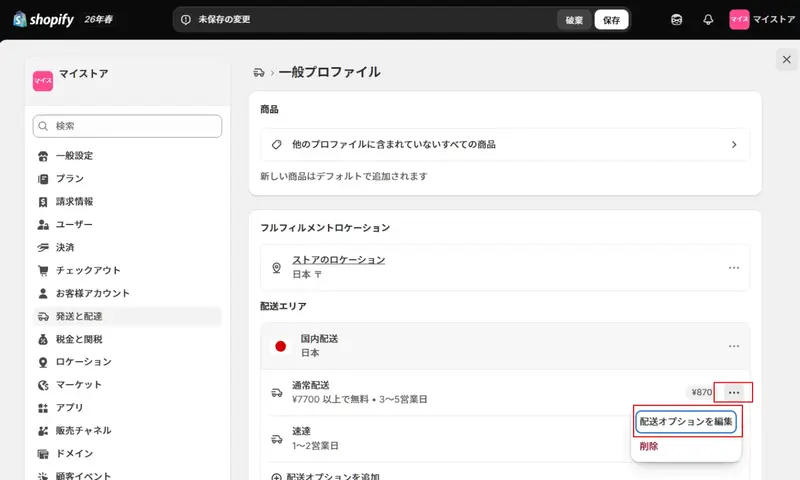
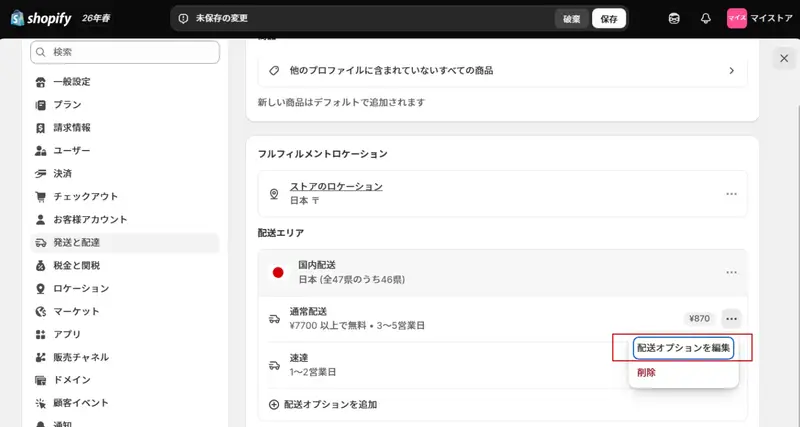
Next, click "Add shipping option" for your delivery area within Japan. To change existing shipping fees, select "Edit shipping options" from the "..." next to the shipping fee.
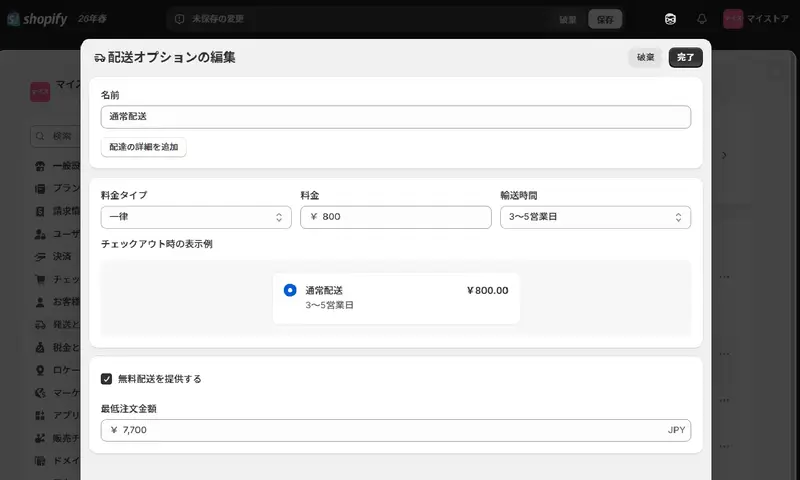
For the "Name" field, enter a name that is easy for the customer to understand, such as "Standard Delivery." This name will also be displayed during checkout.
Add delivery details and shipping times as needed.
Select "Fixed Rate" as the pricing type and enter 800 in the "Price" field. After clicking "Done," click "Save" in the upper right corner of the screen to complete the shipping fee settings.
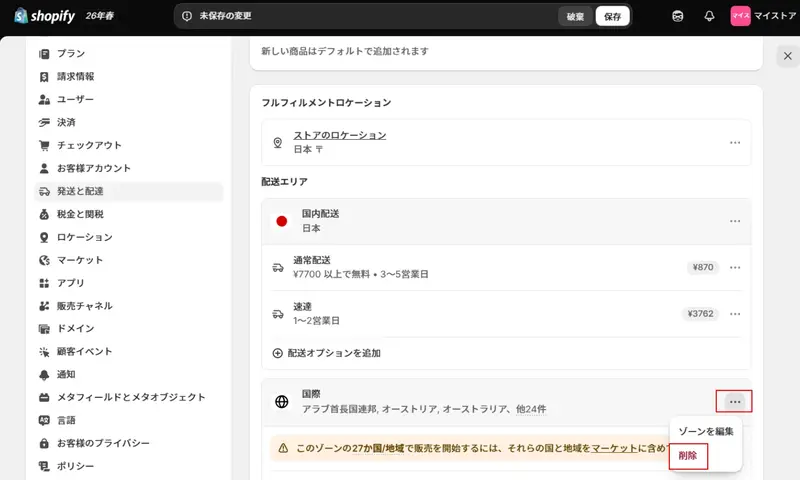
If you do not ship internationally, make sure that no international shipping areas or shipping fees are set. If they are already set, select "Remove" from the "..." next to the relevant shipping area and save the settings.
How to set shipping fees by region
Shopify allows you to set different shipping fees for each delivery area. Here, we will explain how to set shipping fees for Tokyo as an example.
From the Shopify admin panel, go to "Settings" > "Shipping & Delivery," and in the "Shipping Profiles" section, select the profile whose settings you want to change.
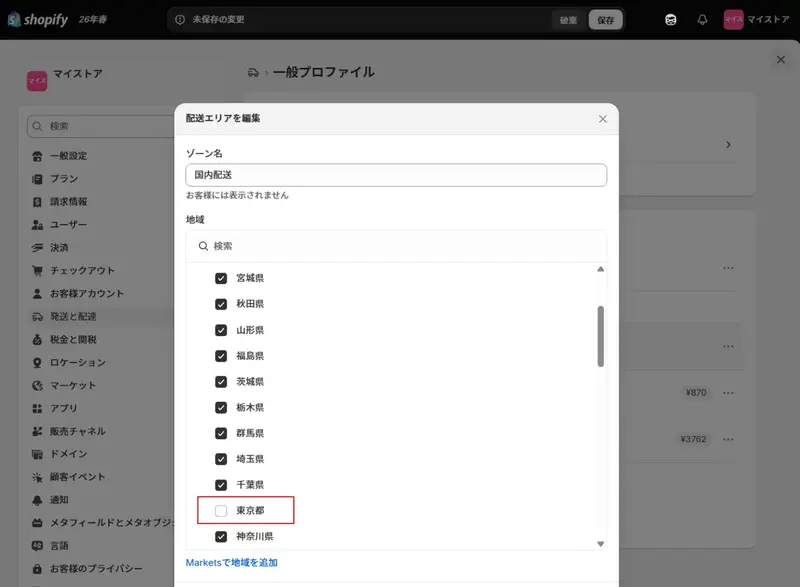
First, click the "..." next to your existing domestic delivery area in Japan and select "Edit Zone". Search for "Tokyo" and uncheck Tokyo, then click "Done".
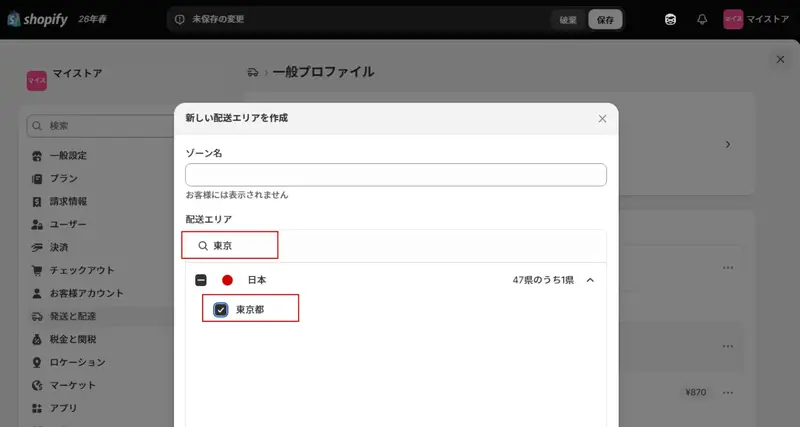
Next, click "Add Area" and enter "Tokyo" as the area name. Search for "Tokyo" in the delivery area, check the box, and click "Done".
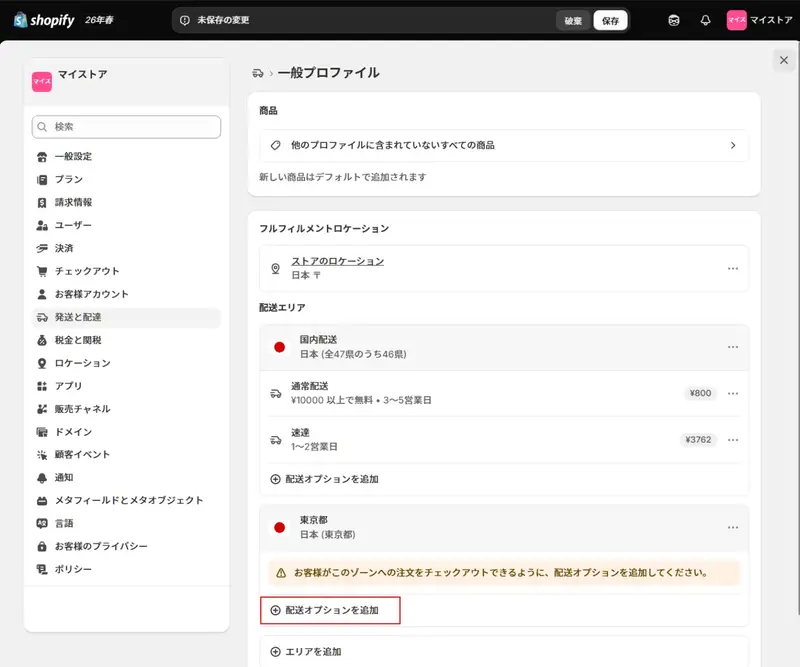
Next, click "Add shipping options".
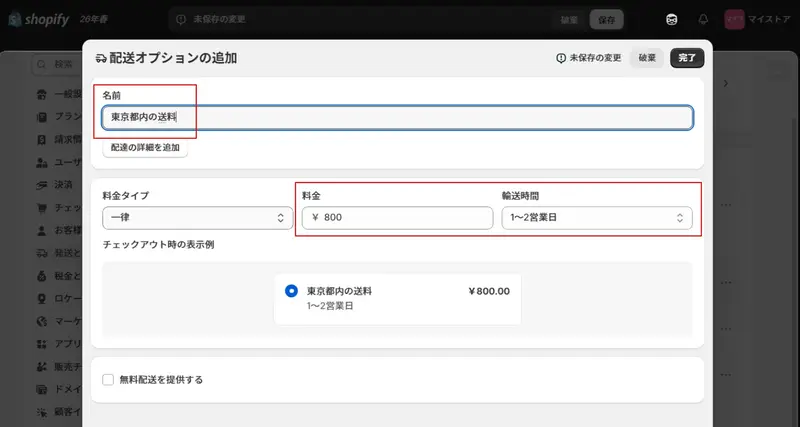
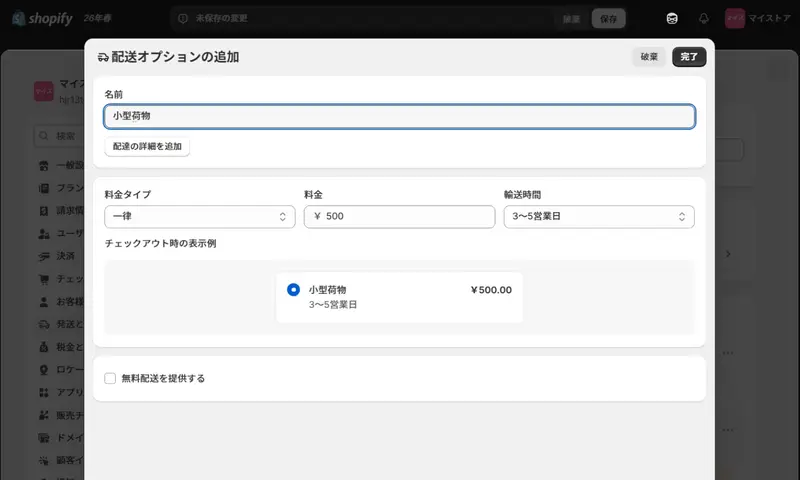
For "Name," enter a clear and easy-to-understand name, such as "Shipping Fee for Tokyo" which will be displayed to customers at checkout. Select "Flat Rate" as the price type, enter the price, choose the shipping time, and then click "Complete."
Finally, click "Done" in the upper right corner of the screen to complete the regional shipping fee settings.
How to set free shipping for purchases above a certain amount
This section explains how to qualify for free shipping on orders over 10,000 yen.
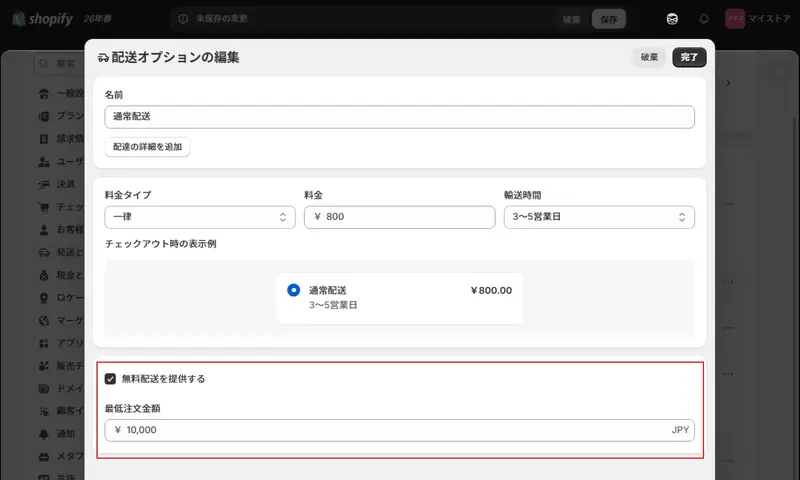
From the Shopify admin panel, go to "Settings" > "Shipping & Delivery," and then select "Edit shipping options" for the shipping profile you want to configure.
Select the "Offer free shipping" checkbox, enter the "Minimum order amount," and click "Done" in the upper right corner.
After clicking "Complete," click "Save" on the screen to finish the settings. This shipping option is free for orders totaling 10,000 yen or more.
If you have multiple products and delivery regions and are unsure how to set up shipping rules, please take advantage of our free consultation. We will organize the settings method according to your operational needs. For those who want to check Shopify settings and post-implementation operations themselves, we recommend our free document summarizing related functions.
Along with setting shipping costs, it's also important to streamline the entire process from order placement to packaging and delivery. What is e-commerce fulfillment? We explain it in detail with three strategies and how to choose the right one.
How to set shipping costs per item
If you want to set different shipping rates for specific products in Shopify than the "basic profile," you create a custom shipping profile. This setting is useful when you want to differentiate shipping rates based on product type, such as small items versus large items.
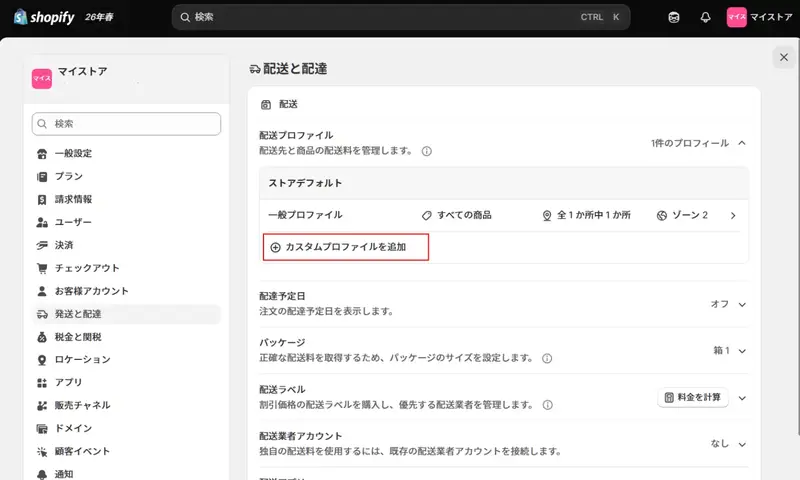
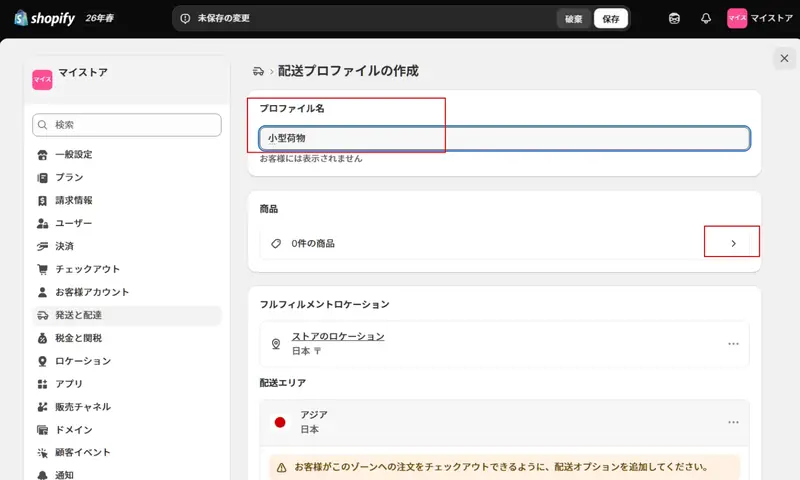
From the Shopify admin panel, go to "Settings" > "Shipping & Delivery" and click "Add a custom profile" in the "Shipping Profiles" section.
For "Profile Name," enter a name that is easy for you to understand. In the "Products" section, click the right-facing arrow, select the product to which you want to apply this profile, and then click "Done."
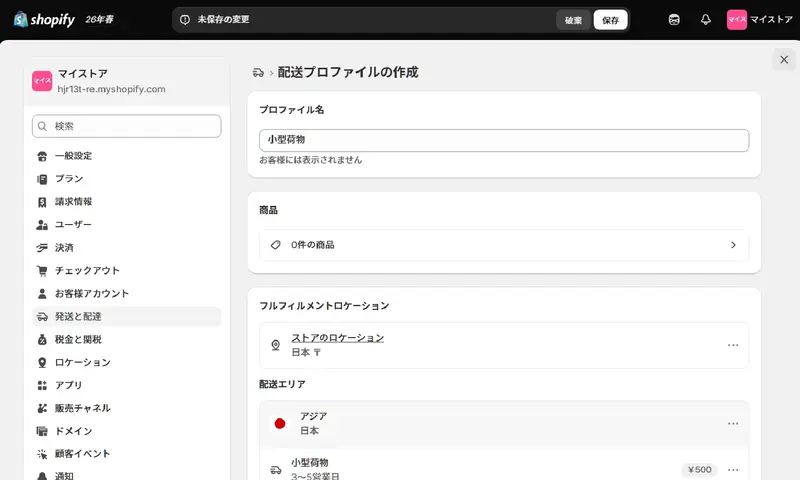
Once you've selected your product, set the shipping area and shipping cost in the same way as described above in "How to set shipping costs by region".
Once all settings are complete, click "Save" on the screen.
You can only add one product or product variation to one shipping profile at a time. When you add it to another shipping profile, it will be automatically removed from the original profile, so shipping costs from multiple profiles will not be applied redundantly.
However, if items with different shipping profiles are ordered at the same time, the shipping fees for each will be added together and displayed as a single shipping fee at checkout.
For example, if you order sneakers with a shipping fee of 800 yen and a bracelet with a shipping fee of 500 yen, the total shipping fee will be 1,300 yen.
Create a shipping fee page.
Once you've set up your shipping fees, create a page that summarizes shipping and delivery information. Clearly presenting necessary information in advance will help customers feel more confident in purchasing your products.
The shipping page will include the following information:
- Delivery area
- Shipping fee schedule
- Conditions for free shipping
- Shipping options and fees
- Additional charges
- Delivery company
- Shipping costs for returns and exchanges
If you offer international shipping, be sure to include the international parcel post fee.
How to create a shipping fee page
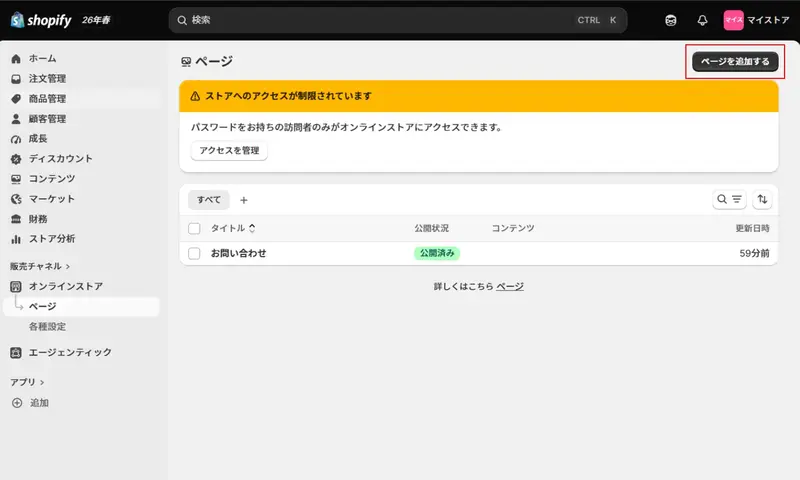
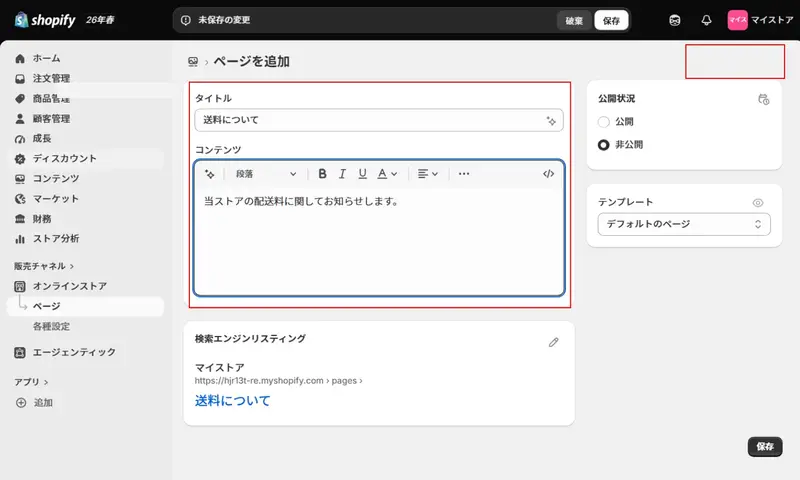
From the Shopify admin panel, navigate to "Online Store" > "Pages" and click "Add a page".
The "Title" is the item that appears in the store's menu and at the top of the page. Choose a clear and descriptive name, such as "Shipping Information." In the "Content" field, enter the details of the shipping information, and then click "Save" in the upper right corner.
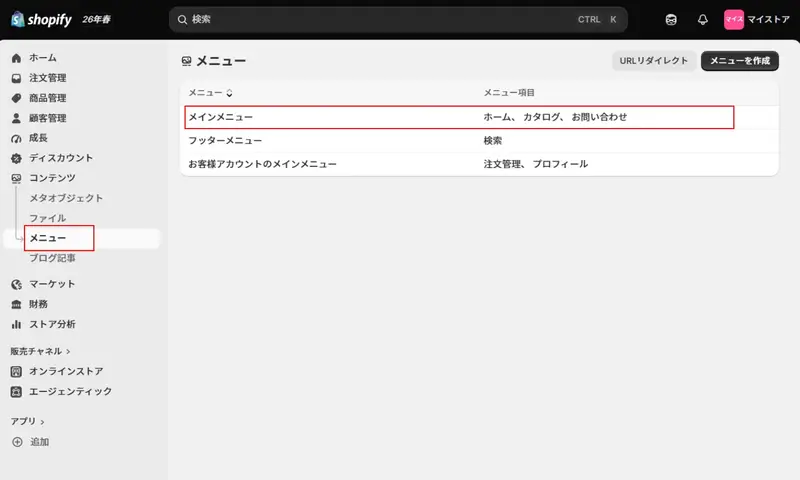
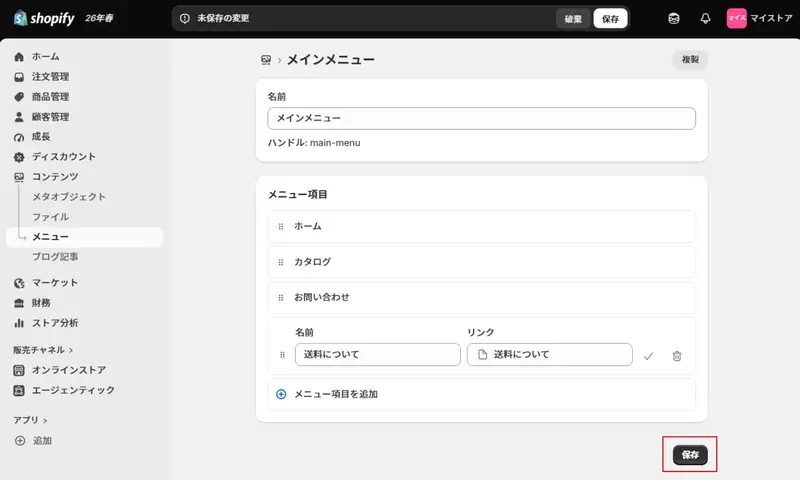
Next, make sure the page you created appears in the store's menu. Open "Navigation" in your sales channel and click "Main Menu".
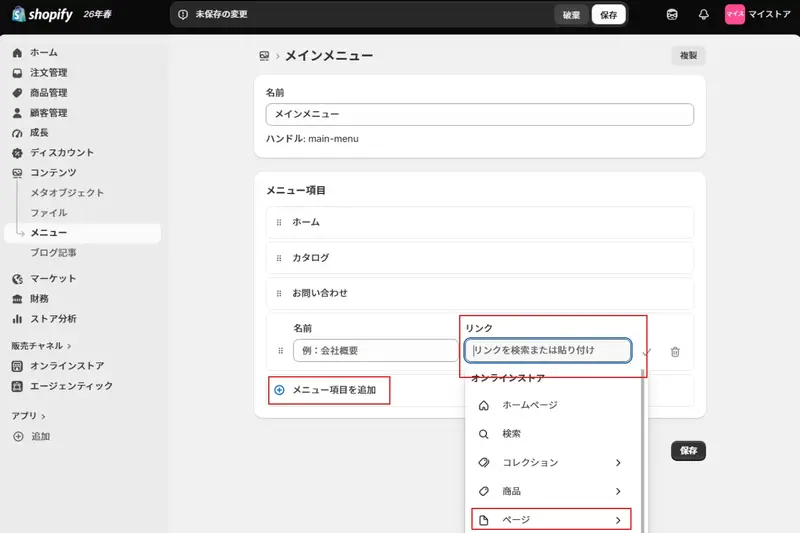
Click "Add menu item" at the bottom of the main menu page, then click "Search or paste a link," and a list of options will appear. Select "Page."
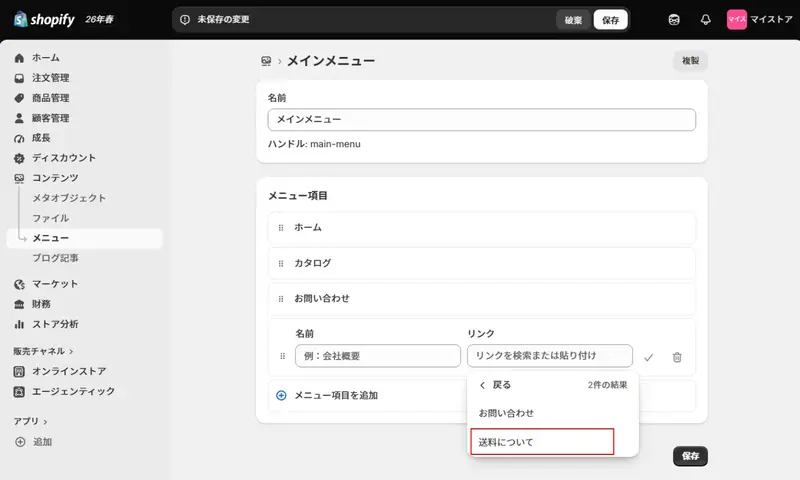
When you select "Page," the "Shipping Information" page you just created will appear in the options, so select it and click "Add."
Click "Save" in the bottom right corner to finish creating the page regarding shipping costs.
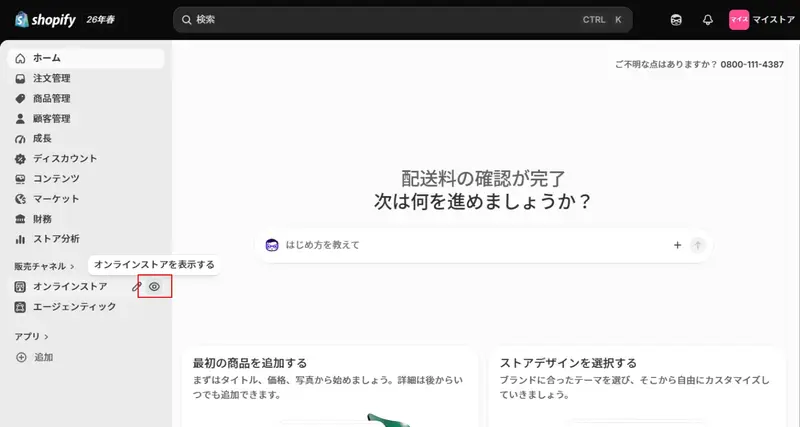
Finally, let's check if it's reflected correctly in the e-commerce store.
When you hover your cursor over the online store, an eye icon will appear; click on it.
If it is displayed correctly on the e-commerce site, then the creation of the shipping page is complete.
In addition to the shipping fee page, you should also create a page that outlines your shipping policy. Establishing a shipping policy will help prevent problems, reduce inquiries, and improve customer trust.
If you're unsure about the content and structure of your shipping page, you can receive a free consultation tailored to your e-commerce site's operational status. If you'd like to learn how to create pages with Shopify or review the basic functions of an e-commerce site, please download our free materials to help you build your site.
Properly managing product inventory and shipping systems also contributes to smooth delivery. This complete guide to e-commerce inventory management provides a thorough explanation of the basic flow, challenges, system integration, and KPI design.
Shopify supports a wide variety of shipping settings, including regional options, allowing for detailed shipping cost configurations tailored to the needs of your shop and customers.
Furthermore, a detailed page regarding shipping costs is important not only for preventing problems but also for improving customer trust through transparent information provision, so be sure to create one thoroughly.
Please refer to this article when setting your shipping fees. It's also recommended to understand the mechanisms of e-commerce logistics and how shipping fees are calculated.
If you'd like to learn more about setting shipping costs tailored to your products and delivery area, or how to build a Shopify store, please take advantage of our free consultation. Our expert staff will propose the best approach for your operational needs. You can also use our free materials to review Shopify's features and implementation methods. Download the materials now to help you consider implementing Shopify.
read more
- Attention all aspiring online shop owners! Here are 7 essential steps to starting your own business!
- Shopify is finally available in Japanese!
- This guide explains how to set up and specify a domain name for your online shop.
- Checklist for setting up a Shopify store
- [Must-Read Guide] Introducing Payment Services You Can Use with Shopify
- 33 Recommended Shopify Themes by Industry
- Get free images! 21 recommended stock photo sites
- A thorough explanation of USP (Unique Selling Proposition)! [Includes 9 helpful case studies]
When selling products on Shopify, inventory management is just as important as setting shipping costs. This article, "Complete Guide to Shopify Inventory Management: Standard Features, Multiple Locations, and Automation Explained," provides a detailed explanation of Shopify's inventory management features.
Frequently Asked Questions about Shipping Settings on Shopify
Where can I edit the shipping costs for my Shopify store?
You can edit your Shopify shipping costs in the admin panel under "Settings" > "Shipping & Delivery".
Can I set shipping costs by region on Shopify?
Yes. By adding delivery areas to your shipping profile, you can set shipping fees by region, such as prefecture.
Can I set up international shipping rates on Shopify?
Yes. You can add countries and regions that you ship to as shipping areas and set shipping fees.
Can I set shipping costs for each product on Shopify?
Yes. You can set different shipping fees for each product by creating a custom shipping profile and adding the products you want to include.
If I add multiple items with different shipping costs to my cart, how will the shipping cost be calculated?
If items with different shipping profiles are ordered simultaneously, the shipping costs for each profile will generally be added together.
Share this article
- Share on Facebook
- Share on X
- Share on LinkedIn