跨境独立站开店
Shopify Inventory Management Guide | Explaining Standard Features, Multiple Locations, and Automation
"How much can I do with Shopify's inventory management using only its standard features?" "I want to know how to centrally manage inventory for physical stores and multiple warehouses on Shopify." "How can I configure my settings to prevent overselling and inventory discrepancies?"

Introduction
"How much can I do with Shopify's inventory management using only its standard features?" "I want to know how to centrally manage inventory for physical stores and multiple warehouses on Shopify." "How can I configure my settings to prevent overselling and inventory discrepancies?"
This is a question that people who are running a store on Shopify, or who have decided to implement it and are proceeding with the setup, are likely to face once they enter the operational phase.
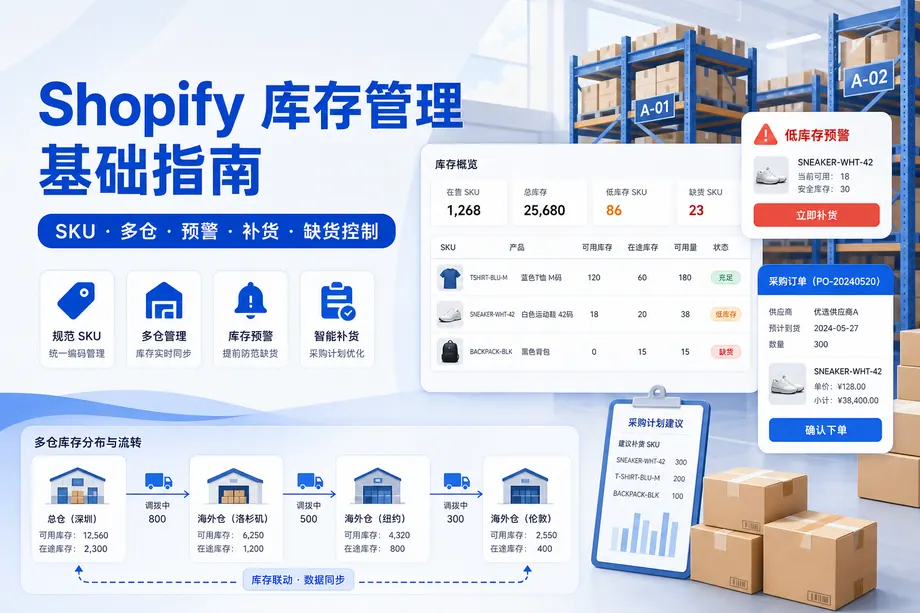
Inventory management is often put on the back burner, yet it directly impacts sales and customer satisfaction in the form of overselling, stockouts, and inventory discrepancies. Shopify comes standard with features such as inventory tracking and multi-location management, and if you understand the key points of setup and operation, you can cover a significant portion of inventory management before implementing an external system.
This article will organize Shopify's inventory management from the following perspectives: "What you can do with standard features," "Centralized management of multiple locations," "Automation with Shopify Flow and apps," "Integration with external systems," "Common pitfalls and how to deal with them," and "Practical steps." Rather than general discussions of inventory management in e-commerce, this article will focus on how to actually manage inventory on Shopify.
The configuration is designed to be directly usable for decision-making during the operational phase, from initial setup immediately after implementation to decisions about expansion when the limitations of standard functions become apparent as the business grows.
1. What you can do with Shopify's inventory management | An overview of standard features
Shopify's inventory management is designed so that basic operations can be completed using the standard features in the admin panel, without the need to install additional costly apps. First, let's get an overview of what can be done with the standard features.
1-1. Shopify's standard inventory management function
Shopify's admin panel comes standard with the following inventory-related features:
Inventory tracking
Inventory levels are recorded for each product and variation, and automatically increased or decreased based on sales.
Multiple locations
Register multiple inventory locations such as warehouses and stores, and manage inventory by location.
Inventory adjustment
Manually adjust inventory levels in accordance with inventory counts and incoming shipments, and record the change history.
Inventory transfer (inventory forwarding)
Record and track inventory movements between locations.
Variation management
Set SKUs and inventory levels for each variation such as size and color.
CSV Bulk Update
Register and update product and inventory data in bulk using a CSV file.
Inventory Report
You can check sales figures, inventory levels, and other trends in the report (the scope varies depending on the plan).
1-2. Peripheral functions linked to inventory management
Inventory management is only truly effective when it works in conjunction with other Shopify features.
- Order Management: When an order is placed, the corresponding product's inventory is automatically deducted.
- Shopify POS: Shares the same inventory count between in-store point-of-sale and online inventory.
- Sales channels: We synchronize inventory with linked channels such as Instagram and Rakuten Market.
- Shopify Flow: Allows you to set up automated processes triggered by inventory levels (availability varies depending on your plan).
Shopify's inventory management approach is based on the principle of managing inventory not as a standalone number, but as an interconnected system linked to orders, stores, channels, and automation.
1-3. Cases where standard features are suitable and cases where they are often insufficient.
Shopify's standard inventory features work well for single- or small-scale online sales. However, when the following requirements are added, it becomes difficult to manage with only the standard features.
- I want to synchronize inventory in real time with multiple external marketplaces and wholesale channels.
- I want to manage inventory at a finer level than SKUs, such as lot number, expiration date, and serial number.
- Advanced inventory control is required, including planned arrivals (backorders) and allocation.
- We want to integrate with our core systems (ERP) and warehouse management systems (WMS).
Determining which category your company falls into early on will make future expansion decisions smoother. Specific criteria for making this determination will be outlined in Chapter 7.
2. Master Shopify's built-in inventory tracking features.
To make the most of the standard features, the first thing you need to understand is how to configure inventory tracking. If this isn't set up correctly, inventory levels won't be updated, leading to overselling and display errors.
2-1. Turn on inventory tracking.
In Shopify, you can enable automatic inventory increases and decreases by turning on the "Track Inventory" setting for each product. If tracking is not enabled, sales will continue regardless of the inventory level, so it is essential to enable tracking for limited-quantity items or items where you want to avoid stockouts.
- Track your inventory: Inventory levels are automatically updated based on sales and returns.
- Continue selling even after stock runs out: You can choose whether to allow purchases even when stock reaches zero.
The latter option is convenient for made-to-order or pre-order sales, but enabling it for regular in-store sales can lead to unintended overselling. It's important to adjust the settings according to the sales method of your product.
2-2. Organization of SKUs, barcodes, and variations
The accuracy of inventory management largely depends on how well the SKUs (stock keeping units, which are unique identifiers for products) are organized. Shopify allows you to set up SKUs and barcodes for each product variation (size, color, etc.), which forms the foundation for inventory tracking, POS sales, and external integrations.
- Standardize SKU naming conventions within the company.
- Assign a unique SKU to each variation.
- Register barcodes (JAN/UPC, etc.) and use them in POS systems and inspections.
If you increase your product range without clearly defined SKUs, you will inevitably incur organizational costs when you later implement an inventory management system. Organizing your SKU master while your product range is still small will ensure smoother future expansion.
2-3. Inventory Adjustment and Change History
You can adjust inventory levels from the Shopify admin panel every time you take inventory or receive a new shipment. You can record the reason for each inventory adjustment (e.g., new shipment, inventory count, damaged goods), and a change history is kept, so you can track "when, who, and why" inventory was moved.
When inventory discrepancies occur, the speed at which the cause can be investigated depends on whether or not this history exists. If manual inventory adjustments are necessary, establishing a rule to always record the reason will make it easier to analyze inventory discrepancies.
2-4. Bulk management using CSV
As the number of products increases, editing inventory one item at a time becomes inefficient. Shopify supports bulk import and export of inventory using CSV files, which can be used for updating large amounts of inventory or exchanging data with other systems.
Regularly exporting inventory data as a CSV file also serves as a backup. In manual operations, proficiency in using CSV files significantly impacts work efficiency.
3. Multi-location inventory management | Centralized inventory management across warehouses and stores
One of the most valuable features of Shopify's inventory management, even though it's a standard feature, is the multiple location functionality. You can manage multiple inventory locations, such as warehouses, stores, and external fulfillment centers, from a single management screen.
3-1. What can be done in multiple locations
Enabling the multiple location feature allows you to assign inventory levels to each location and display the combined "available inventory" on your online store.
- Register locations and manage inventory by location.
- Specify which location the order will be shipped from.
- We track physical store inventory separately from warehouse inventory used for e-commerce shipments.
There is a limit to the number of locations you can register, depending on your plan. The latest limits vary by plan, so we recommend checking the pricing page on our official website.
3-2. Inventory Allocation and Shipping Origin Settings
When operating multiple locations, designing "which order will be shipped from which location" is crucial. Shopify allows you to specify the shipping origin location for each order, enabling efficient shipping from the location where inventory is available.
- We ship from a location close to the customer's delivery address to shorten delivery lead times.
- If inventory is unevenly distributed, switch the shipping source across different locations.
- Link in-store pickup (BOPIS) to the inventory at the store location.
As the number of locations increases, shipping rules become more complex. It's more practical to start with simple rules and then optimize them once the system is running smoothly.
3-3. Management of Inventory Movement (Inventory Transfer)
When moving inventory between locations, the inventory transfer function allows you to record inventory in transit and estimated arrival dates. This makes it possible to visualize "where inventory is currently located," such as when sending goods from a warehouse to a store, preventing situations where inventory in transit becomes invisible.
For businesses where inventory is moved between locations on a daily basis, consistently using this function to record those movements will ensure stable inventory accuracy.
3-4. Omnichannel inventory integration with Shopify POS
Implementing Shopify POS (a point-of-sale system for physical stores) ensures that your physical store and online store share the same inventory count. When an item is sold in-store, the online inventory count decreases in real time, making it easier to prevent cross-channel overselling.
- Sales at the store register are instantly reflected in online inventory.
- Online orders can be picked up at the store or shipped from store inventory.
- It allows you to manage store and e-commerce inventory as a single unit without separating them.
For businesses that operate both physical stores and e-commerce, this centralization of inventory is one of the main reasons for choosing Shopify.
4. Automate inventory management in Shopify | Shopify Flow and app integration
Managing inventory manually will inevitably reach its limits as your business grows. Shopify offers automation and scalability features, allowing you to automate tasks such as inventory alerts and replenishment decisions.
4-1. Automating inventory with Shopify Flow
Shopify Flow is an automation app that allows you to set rules such as "If X happens, then do Y." The range of features available varies depending on your plan, with Shopify Plus offering more advanced automation capabilities.
The following types of automation are commonly used in inventory management:
- When inventory falls below a certain level, the person in charge will be notified via email or Slack.
- Automatically hide out-of-stock items from your collection.
- Once a specific product is restocked, tag it and redisplay it.
- The system sends an alert to the purchasing department based on inventory levels.
Monitoring these items manually is burdensome and prone to oversights. Automating the process as a rule will speed up the response to stock shortages and the decision to replenish stock.
4-2. Extend inventory functionality in the app store.
The Shopify App Store offers numerous apps to enhance inventory management. A key feature is that you can use apps to supplement the shortcomings of the standard features, only where necessary.
- Centralized inventory management and inventory synchronization across multiple marketplaces.
- Order and procurement management (managing outstanding orders and expected deliveries)
- Inventory forecasting and demand forecasting
- Lot, expiration date, and serial number management
- Efficiency improvements for warehouse operations (picking and inspection)
While apps can be easily added, adding too many can increase monthly costs and complexity. The key to keeping operations light is to limit the number of apps you implement, following the principle of "only supplementing what's lacking in standard features."
4-3. API and External System Integration
If you require more sophisticated inventory integration, you can connect with inventory management systems (OMS/WMS) and enterprise resource planning (ERP) systems via the Shopify API.
- It integrates with the Order Management System (OMS) to consolidate orders and inventory across multiple channels.
- It integrates with a warehouse management system (WMS) to synchronize actual incoming/outgoing and inventory data.
- It integrates with the core system to centralize sales, inventory, and accounting data.
While API integration offers high flexibility, it requires requirements definition and a development and maintenance system. If your company lacks the necessary development resources, you can consider using apps with a proven track record of integration or leveraging the support of Shopify partners.
5. Common pitfalls and solutions for inventory management in Shopify
While Shopify's inventory management system is well-structured, there are several points where users stumble during setup and operation. This article summarizes common issues and their solutions.
5-1. Net selling (overselling) occurs.
One of the most undesirable problems in e-commerce operations is when you have inventory but are unable to actually ship the products. The main causes are usually that inventory tracking is turned off or there is a time lag in synchronizing inventory across multiple channels.
- For physical products, be sure to turn on "Track inventory".
- Do not unintentionally enable the "Continue selling even after stock runs out" setting for products you didn't intend to sell.
- When selling through multiple channels, check the frequency and mechanism of inventory synchronization.
Especially when selling on multiple online marketplaces, synchronization time lags can easily lead to overselling. It's crucial to understand whether synchronization occurs every few minutes or if it's a batch process.
5-2. Inventory discrepancies between channels
When selling through multiple channels such as online stores, physical stores, and external marketplaces, inventory levels can sometimes differ across channels. While Shopify POS and official sales channel integrations ensure inventory is shared, discrepancies are more likely to occur when using external systems that don't have standard integrations.
The basic solution is to decide on a single "correct" inventory location. Clearly define whether Shopify or an external inventory management system will be the correct inventory location, and configure all other channels to synchronize with it. This will make it easier to pinpoint the cause of discrepancies.
5-3. Discrepancies arise during inventory count.
Inventory discrepancies between system inventory counts and actual inventory counts occur to some extent in any business. By correcting these discrepancies using Shopify's inventory adjustment function and recording the reasons for the adjustments, you can identify the locations and patterns of causes where discrepancies occur.
- Regularly conduct inventory checks and reconcile the system with actual inventory.
- If a discrepancy occurs, record the reason for the inventory adjustment.
- Analyze the trends in the differences and identify the processes that are causing them.
When dealing with inventory discrepancies, focusing on "identifying the causes and reducing them" rather than "eliminating them completely" leads to more realistic improvements.
5-4. There is inventory that cannot be managed with standard functions.
Managing inventory details such as lot number, expiration date, serial number, and expected arrival date (backorders), which are more granular than SKUs and involve time scales, is difficult with Shopify's standard features alone. If these are essential to your business, you should consider implementing a corresponding app or integrating with an external inventory management system.
If you clarify early on whether your company's products or services have these requirements, it will be easier to decide whether to stick with standard features or expand them.
6. [Practical Guide] Steps to Getting Inventory Management on Track with Shopify
Based on the information above, let's outline the steps for setting up and establishing inventory management in Shopify. Even if you are already using it, you can use this as a checklist to ensure you haven't missed anything.
Step 1: Prepare SKU master data and product data (Duration: 1-2 weeks)
Product data is the foundation of inventory management. First, standardize the naming convention for SKUs and organize product information, including variations and barcodes.
Preparing the data at this stage will significantly improve the accuracy of subsequent processes.
Step 2: Set up inventory tracking and initial inventory (Duration: 1 week)
Enable inventory tracking for each product and register the initial stock quantity. The "Continue selling even after stock runs out" setting should only be applied to applicable products such as made-to-order or pre-order items.
Step 3: Design the location (Duration: 1-2 weeks)
Register locations such as warehouses, stores, and external bases, and set inventory levels for each location. If you operate multiple locations, you should also define the rules for shipping origins and the operational flow for inventory transfers.
Step 4: Sync sales channels and inventory (Duration: 1-2 weeks)
In addition to the online store, inventory will be linked with physical stores (Shopify POS) and external channels. At this stage, it is important to clarify where the "correct" inventory level will be placed and to confirm the synchronization mechanism and frequency.
Step 5: Integrate automation and alerts (Duration: Ongoing)
We'll incorporate automation to reduce operational burden, such as minimum inventory alerts and automatic hiding of out-of-stock items. You'll see the benefits more quickly if you automate tasks that are currently monitored manually, starting with the most frequently done ones.
Step 6: Make inventory and improvement a regular practice (Duration: Ongoing)
We verify inventory accuracy through regular inventory counts and analyze the causes of discrepancies. We identify challenges during operation and consider expanding the system with apps or external systems as needed.
7. What to do if standard features are insufficient | Consider apps, external systems, or Plus
As a business grows, there will be times when standard features are no longer sufficient for inventory management. This document outlines the options for expansion and the thought processes involved in making those decisions.
7-1. Three options for expansion
There are three main ways to extend Shopify's inventory management capabilities.
Suitable cases
Supplement with an app
I want to enhance only specific functions (inventory synchronization, order management, etc.).
As the number of apps increases, so do the costs and complexity.
Integration with external systems
I want to integrate my OMS, WMS, ERP, and inventory management system.
Requirements definition, integrated development, and maintenance systems are necessary.
Migrating to Pageify Plus
I want to fully implement automation, B2B, and multiple online stores.
Costs require inquiry; there is ample room for expansion.
There isn't just one right answer; it's common practice to combine these elements to suit your company's specific requirements.
7-2. Expanding Inventory-Related Options with Shopify Plus
Shopify Plus is an option for businesses that have grown and require more advanced operations. In terms of inventory management, it offers the following enhancements:
- Shopify Flow: You can fully utilize automated inventory triggers.
- Multiple Store Management: You can manage stores and inventory by brand and region.
- B2B functionality: Allows you to manage inventory and order placement/receiving for wholesale channels.
- Increased API limits: Makes it easier to integrate with large-scale external systems.
Shopify Plus pricing is not publicly available as it is based on individual quotes. We recommend that you clarify your requirements and inquire to determine which plan is appropriate for your company's inventory size and channel configuration.
7-3. Three perspectives for deciding on expansion
The decision of whether to stick with standard features or take the plunge into extensions can be more easily made by considering the following points.
- Limitations of manual processes: Is the time and effort required for inventory updates and synchronization becoming a bottleneck in your business?
- Frequency of overselling and stockouts: Are problems that cannot be prevented by using standard functions becoming commonplace?
- Future expansion plans: Will planned expansions such as multi-store operations, cross-border expansion, and wholesale operations affect inventory requirements?
If these issues present clear challenges, then it's time for expansion. Conversely, if the problems can be resolved through operational improvements or configuration reviews, prioritizing the full use of standard features first will help minimize unnecessary costs.
Shopify's inventory management system comes standard with features such as inventory tracking, multiple locations, and inventory adjustments. With a good grasp of the setup and operation, it can cover many requirements even before implementing external systems. The basic approach is to then supplement any shortcomings with automation and external integrations, and expand as your business grows.
This article has covered everything from an overview of standard features, setting up inventory tracking, centralized management of multiple locations, automation through Shopify Flow, apps, and API integration, common pitfalls and how to deal with them, practical steps, and criteria for deciding whether to extend features.
5 Key Points for Successful Inventory Management on Shopify
- First, we fully utilize the standard features, understanding what can be done with them, such as inventory tracking, multiple locations, and inventory adjustments, and then supplement only the parts that are lacking with external services.
- Establishing naming conventions and organizing variation barcodes for your SKU master early on will ensure smooth inventory synchronization in the future.
- If you're selling through multiple channels and want to establish a single "correct" inventory level, you need to clearly define where you'll set the inventory standard and configure your system to synchronize with it.
- By integrating features such as automated inventory alerts and automatic hiding of out-of-stock items, we speed up the process of addressing stock shortages and making replenishment decisions.
- We determine the timing of expansion based on the limitations of manual processes, the frequency of net sales, and future plans, and then decide whether to expand to apps, external integrations, and Shopify Plus.
Let's take the first step
Shopify inventory management can be overwhelming if you try to get everything perfect all at once. It's best to start with the basics, such as setting up inventory tracking and organizing your SKU master, and then gradually expand to multiple locations and automation. This way, you can easily establish a smooth workflow.
If your company's inventory scale and channel configuration are complex and you're unsure whether standard functions will suffice, utilizing a third-party perspective on system integration and expansion design is a valid option.
References
- Ministry of Economy, Trade and Industry, "Market Survey on Electronic Commerce," various annual editions.
*The Shopify features and specifications described in this article are based on publicly available information as of August 2026. The scope of features and location limits for each plan may change, so please check the official Shopify website for the latest information.
Share this article
- Share on Facebook
- Share on X
- Share on LinkedIn