跨境独立站开店
How to register products in your Shopify store using a CSV file
If you're adding products to your Shopify store, bulk uploading using a CSV file is a convenient method. This time, we'll show you how to input product information into Shopify using a CSV file.

This guide explains how to add products to your store using a CSV file.
If you're adding products to your Shopify store, bulk uploading using a CSV file is a convenient method. This time, we'll show you how to input product information into Shopify using a CSV file.
What is a CSV file?
CSV stands for "comma-separated" in Japanese. In other words, a CSV file is a file in which strings are separated by commas (,). In Shopify, it is mainly used for inputting and outputting product and customer information.
By simply creating a CSV file with the fields specified by Shopify, you can easily import product information and other data from other websites into your own store!
Read more about CSV
How to upload products to your Shopify store using a CSV file
1. Download the sample CSV file.
You can download a sample CSV file from your store's admin panel or from here.
The most important thing when importing a CSV file into your Shopify store is to edit the fields in the file to match the format specified by Shopify. (A list of fields in the CSV file used in your store is included at the end of this article.)
2. Import and edit the file.
Import the template file into Google Sheets and edit it. Once you have Google Sheets open, select File > Import > Upload, and then select the file.
*While you can use Excel or other programs to create a CSV file containing product information, Shopify recommends using Google Sheets.
3. Download the file.
Once you have created the CSV file in Google Sheets, go to File > Download as > Comma Separated Values (.csv current sheet) and download it.
4. Import the files into your Shopify store.
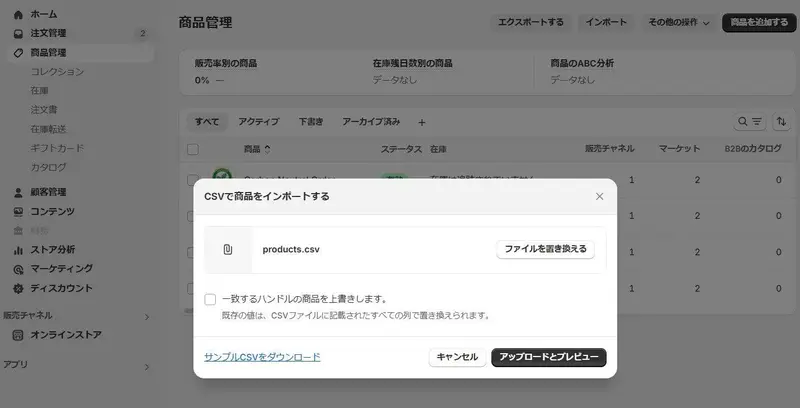
Return to Shopify. From the admin panel, select Product Management. Then click "Import" at the top and select the file you downloaded earlier. Checking the box will overwrite the existing product listings and import the new one.
5. Upload the data.
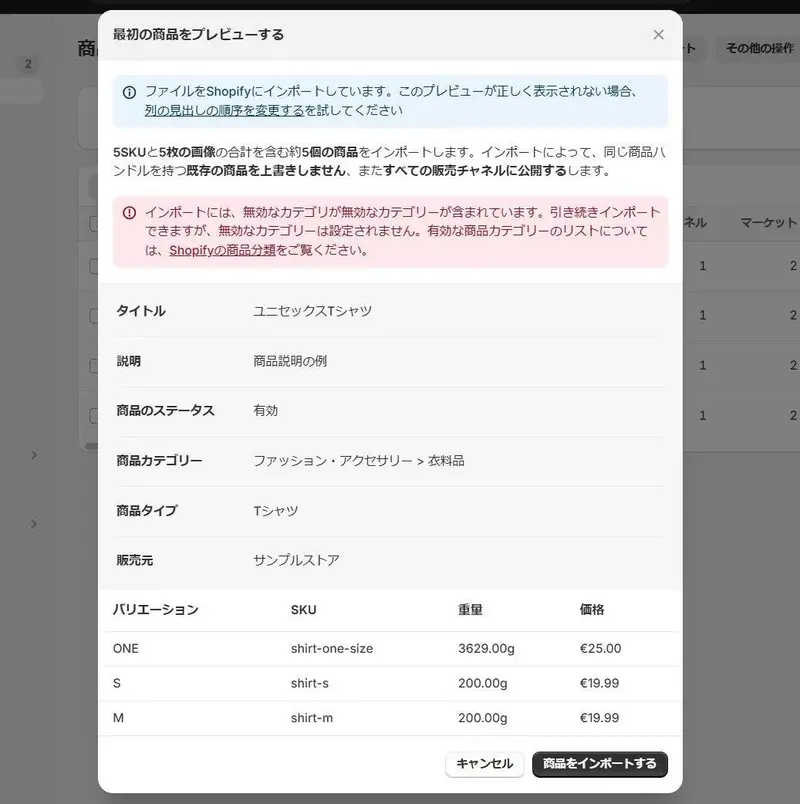
A preview will then be displayed. Click "Import Products" to load the files.
Please check the added items in the store's product management section!
What if an error occurs when uploading a CSV file?
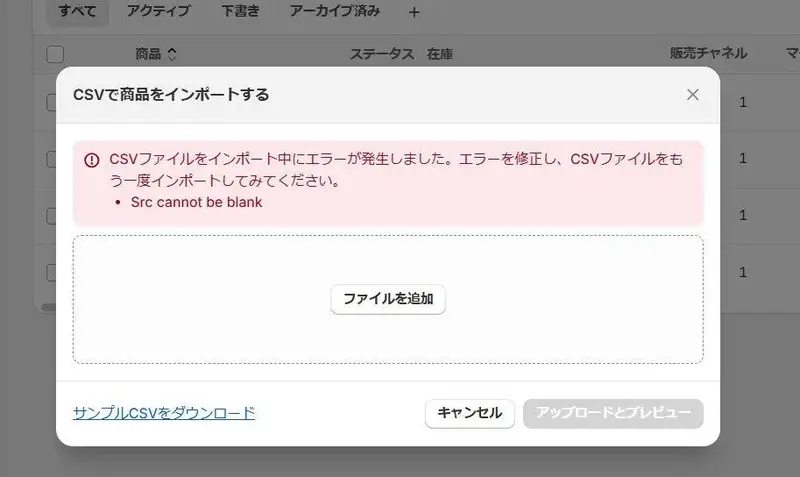
If there are any problems with the file, such as missing required fields or containing invalid characters, an error will occur and you will not be able to upload the CSV file.
Don't panic; carefully check the items displayed in the error message. At this point, import the CSV file back into Google Sheets, edit it, download it as a CSV file, and then upload it to the store again.
For common error messages and their solutions, please see this help page.
List of items in a CSV file
This is a list of the fields in the CSV file used by Shopify and their descriptions. You can leave fields blank if they are not required and you do not intend to use them.
*When updating products using a CSV file, the only required columns are Handle and Title.
read more
- [How to Use Shopify] Opening an Online Store: Basic Setup
- Find products that will sell in your shop! 12 apps to help you find products you don't need to ship yourself.
- Shopify Official Store Setup Guidebook 2022 Edition Released! Start your online store with Shopify!
- Shopify and Rakuten Ichiba have started their sales channel integration!
- What are the advantages of dropshipping, and what should beginners be aware of? [A noteworthy method for operating e-commerce sites in Europe and the US]
- How to develop Shopify apps and themes
- [Must-Read Guide] Introducing Payment Services You Can Use with Shopify
- Integrating Messenger with your store? Let's try a new way of selling products.
- What is the "Disclosure Based on the Specified Commercial Transactions Law" required for online shops?
FAQ
What is a CSV file?
Many people may be hearing the term "CSV file" for the first time. CSV stands for "comma-separated" in Japanese. In other words, a CSV file is a file in which strings are separated by commas (,).
How can CSV files be used in Shopify?
When migrating to a new platform, you can use a CSV file to import data in bulk.
Is it possible to export the data?
Product information can be exported as a CSV file. Please click "Export" on the product management screen.
I can't open the CSV file properly. What should I do?
Try importing it into Google Sheets and opening it there.
Share this article
- Share on Facebook
- Share on X
- Share on LinkedIn