跨境独立站开店
We have released an app for batch price changes in preparation for the consumption tax increase.
With the consumption tax increase starting October 1st, some businesses may be changing their product prices. Therefore, Shopify, in collaboration with Shopify partner Byward Labs, has released a Japanese-language app for bulk price changes.

With the consumption tax increase starting October 1st, some businesses may be changing their product prices. Therefore, Shopify, in collaboration with Shopify partner Byward Labs, has released a Japanese-language app for bulk price changes.
With the consumption tax increase starting October 1st, some businesses may need to change their product prices. Therefore, Shopify, in collaboration with Shopify partner Byward Labs, has released a Japanese-language app for bulk price changes.
Install here
What you can do with the app
Bulk price change
- You can change product prices individually (including variations), by collection, or all at once. You can either set a percentage increase for each price, or enter different prices for each item individually (please note that for merchants with a large number of products, it may take several minutes for all changes to take effect).
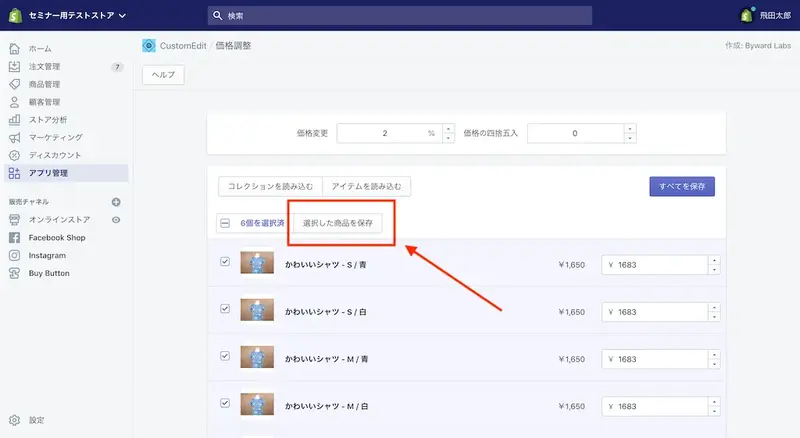
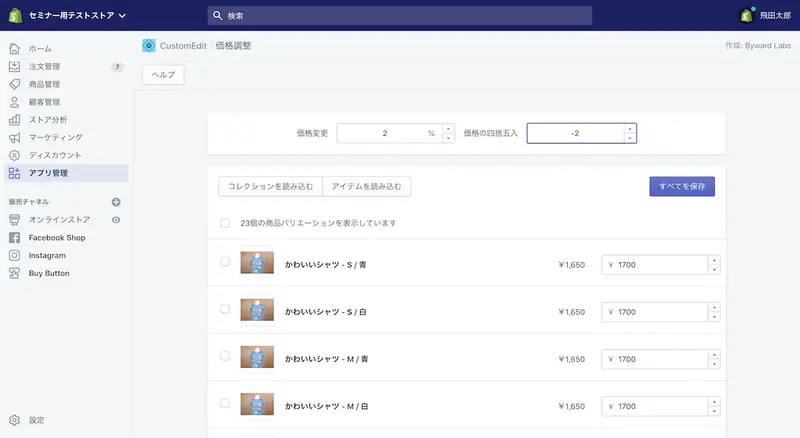
- Furthermore, rounding rules for fractional amounts can be set for all products at once using the same rules (e.g., if you increase the price of a ¥1,650 product by 2%, it becomes ¥1,683, which can then be rounded to ¥1,680 or ¥1,700).
How to use the app
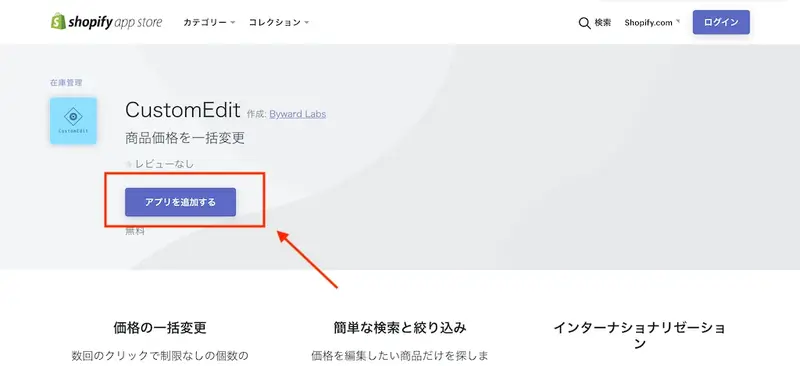
Install the app from the Shopify app store.
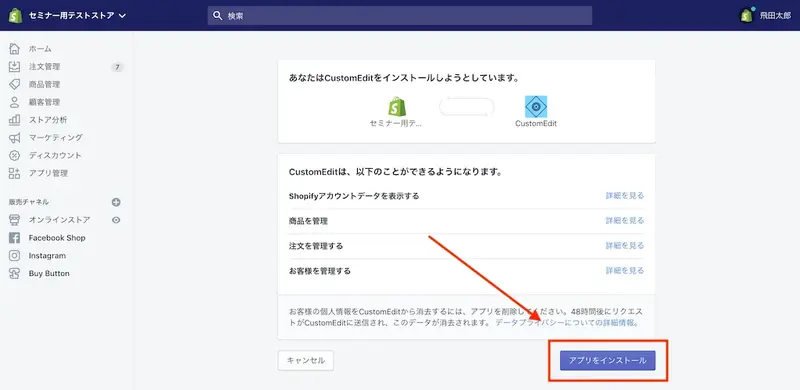
Click "Add app" from here, log in to the store, and install the app.
When you want to change the price of all products at once
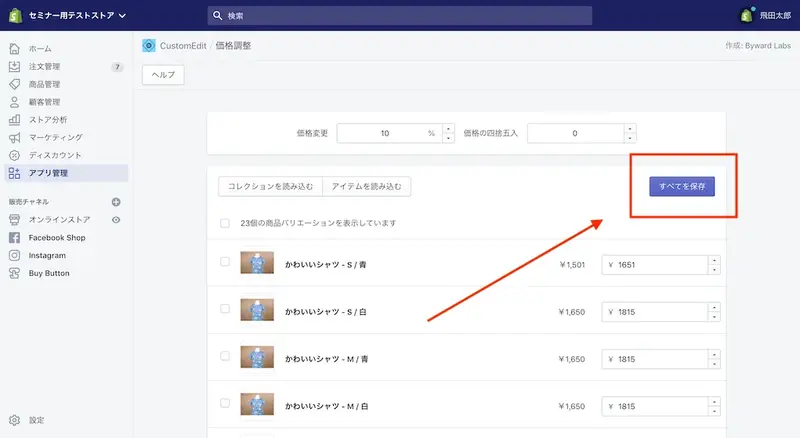
By entering a percentage in the "Price Change" field and clicking "Save All," you can change the price of all products and variations in your store by the specified percentage. Please note that the more products and variations there are, the longer it will take to complete the update.
When you want to change the price of each item in a collection
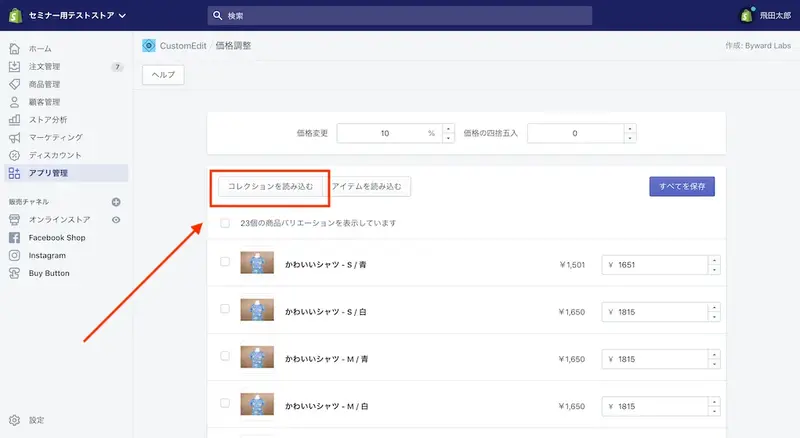
You can also change the product price for each collection. Click "Load Collection".
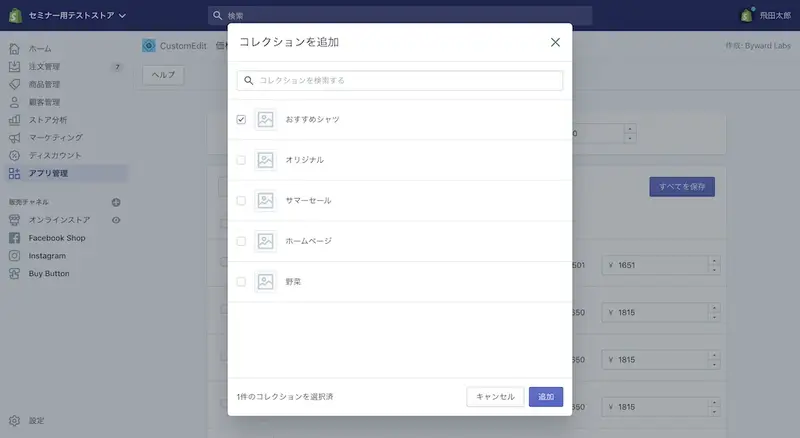
Please select the collection(s) for which you would like to change the price (multiple selections are possible).
The items in the selected collection will be loaded. Enter the percentages and prices directly and click "Save All" or check the box next to the items and click "Save Selected Items". Please note that the more items and variations there are, the longer it will take to complete the update.
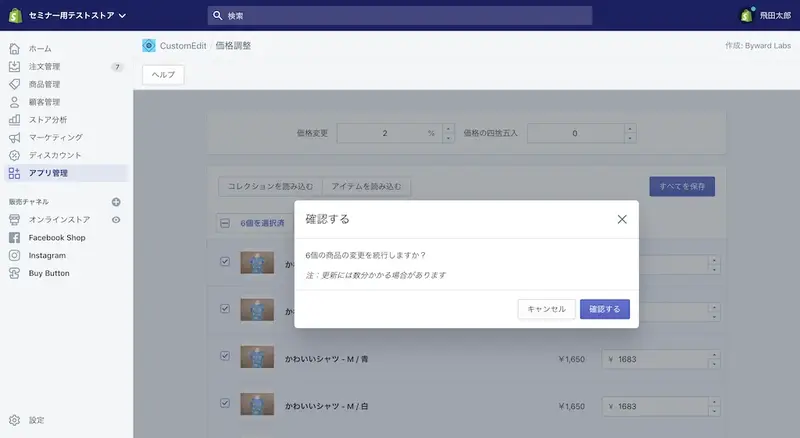
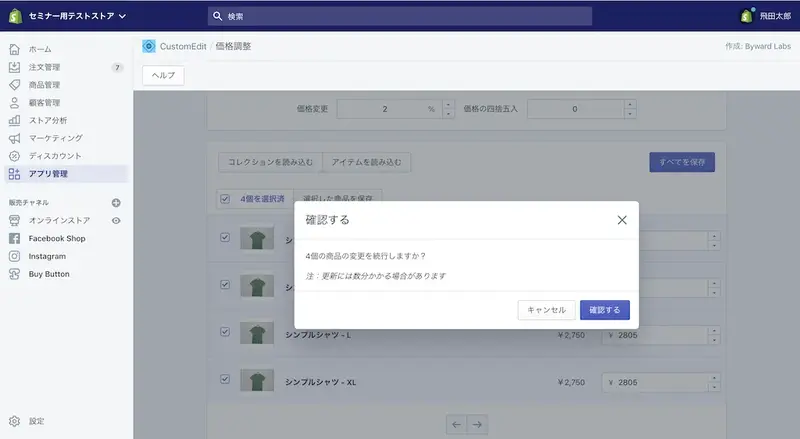
When you press save, a confirmation screen will appear. Please be sure to check that the number of selected items matches the number of items displayed, and then update.
When you want to change the price of each product individually.
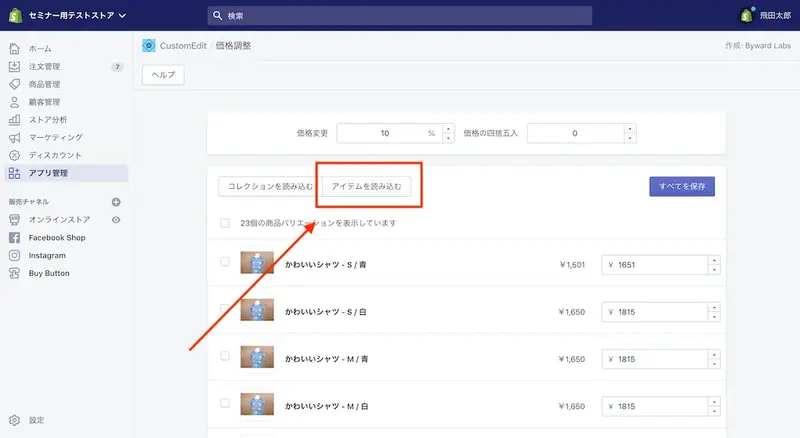
Just like with collections, you can also change the price of each item individually. Click "Load Items".
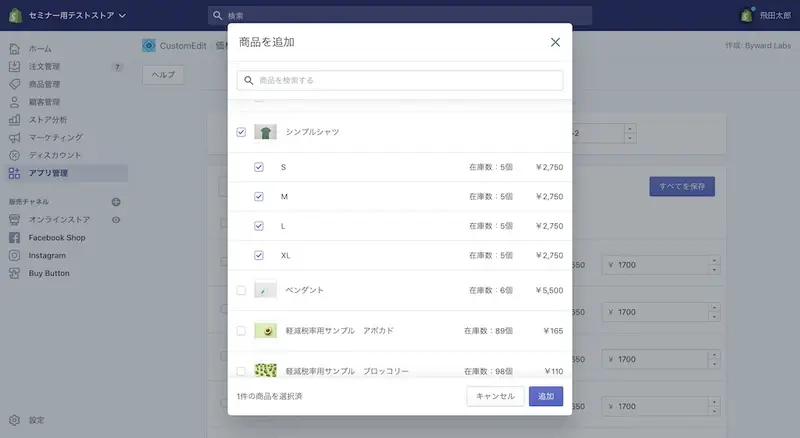
Please select the items(s) whose prices you would like to change (multiple items are allowed).
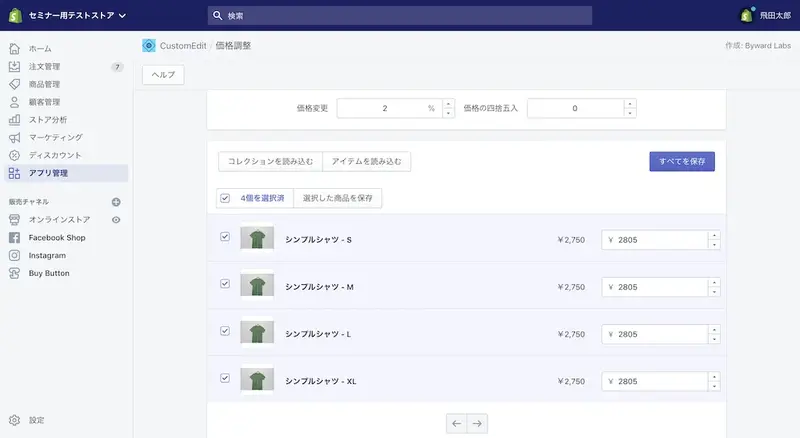
The selected items will be loaded, so enter the percentage and price directly and click "Save All" or check the box next to the items and click "Save Selected Items".
Review the items whose prices need updating, and click "Confirm" to change the prices.
When you want to round the price.
Even when you raise product prices, you often end up with odd numbers. For situations like that, the app includes a rounding function.
You can set your own rules for rounding prices. In the example, when increasing the price from ¥1,650 by 2%, the rounding function is used to determine the product price as ¥1,683 to ¥1,700. Note that this rounding function is applied the same way to all selected products.
Thorough preparation
The consumption tax increase is just around the corner. Let's carefully plan our strategies and prepare to avoid major disruptions! Click here for more details on how Shopify will handle the consumption tax increase.
Share this article
- Share on Facebook
- Share on X
- Share on LinkedIn