跨境独立站开店
Three steps to set up a local Shopify theme development environment
The Theme Kit mentioned in this article no longer supports the latest themes, so please use the following tools going forward.
*This article's content is no longer up-to-date due to an update in 2021.
Please refer to the following for information on how to develop themes.
How to develop Shopify apps and themes
The Theme Kit mentioned in this article no longer supports the latest themes, so please use the following tools going forward.
Shopify CLI for the messages
Many developers and designers love the online Shopify theme editor, which is easy to use and located within the Shopify admin panel. However, if you plan to develop Shopify themes regularly, you should know that you don't have to be limited to just the online theme editor.
This article explains how to install and use Theme Kit. This cross-platform tool makes it easy to integrate with Shopify while allowing you to use your own development tools.
Once you've set up Theme Kit, it's easy to integrate workflow tools like Git into your theme development. This allows your development team to confidently work on Shopify themes and bring their favorite text editors and localized experiences into theme editing. Because Shopify is a hosted platform, Shopify development requires a connection to Shopify servers for compiling and rendering Liquid with store data, and therefore Theme Kit is not inherently local.
Note: Since Shopify is a hosted platform, there are no truly local options for integrating with Shopify (like MAMP or WAMP), making Theme Kit the best option for using custom tools locally.
Now, let's look at the tools and process we'll use to build a Shopify theme locally. To make the most of this article, you'll need a basic understanding of the command line. Additional information can be found at Codecademy.
1. Install the theme kit.
2. Authentication API Configuration
3. Push the update
Step 1: Install Theme Kit
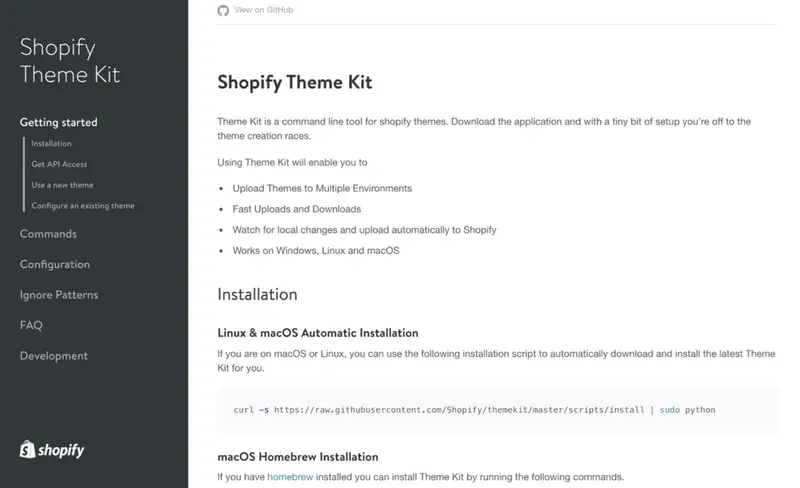
Theme Kit is a cross-platform command-line tool for building Shopify themes, developed and maintained by Shopify. You can start creating themes by downloading Theme Kit and performing a few simple configurations.
The distinctive features of Theme Kit are as follows:
- Upload the theme to multiple environments
• High-speed upload and download
- Automatically uploads local changes to Shopify
• Available for Windows, Linux, and macOS
If you are using Linux or macOS, run the following script in Terminal to install and configure Theme Kit globally.
Alternatively, you can manually install the theme by downloading the ZIP file from the Theme Kit website. Please follow the instructions on the Theme Kit website.
Troubleshooting older versions and testing installed theme kits
Before running any Theme Kit commands, make sure you are using the latest version. If you have previously used theme gems, make sure to uninstall them. If this is your first time installing Theme Kit, you can ignore the following instructions.
To uninstall an existing Shopify theme gem, run the following command:
gem uninstall shopify-theme
Please ensure you have the latest version of Theme Kit (available here). To update the Theme Kit, run the following command:
theme update --version=[version number]
For example, it would look like this:
theme update --version=v1.0.0
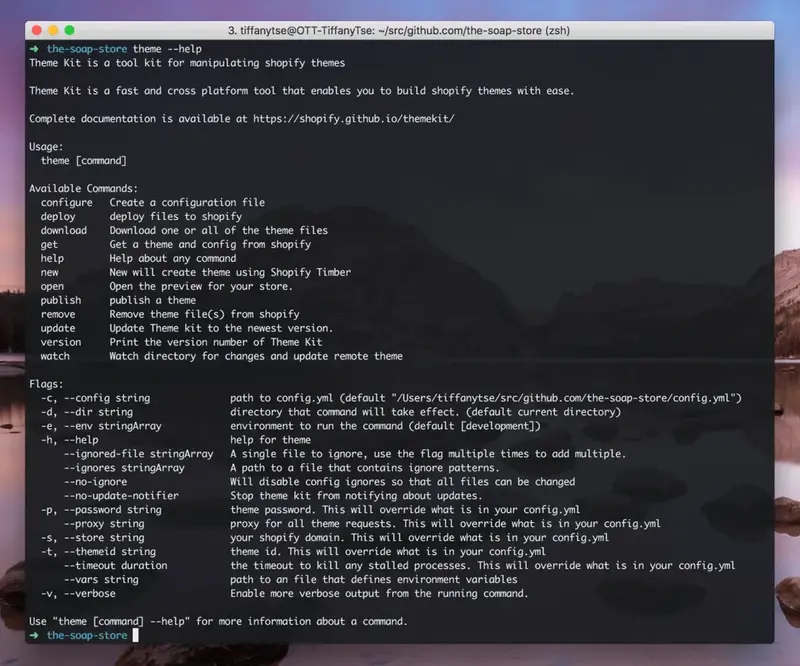
To test that Theme Kit is installed, enter the following:
theme --help
Step 2: Configure the Authentication API
Once Theme Kit is installed, you will need to configure it to connect your Shopify store with your local theme. This will require your API key, password, and theme ID.
API key and password
Set up an API key to connect the store and Theme Kit. The API key will allow access to the store and theme files.
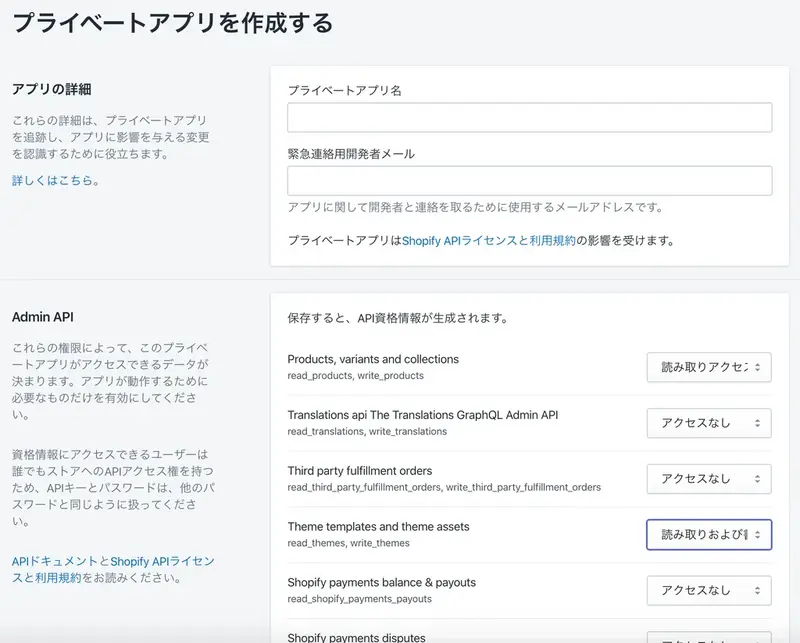
To do this, you need to log in to your Shopify store and create a private app. In the admin panel, click "Manage private apps" in the "App management" section. Next, select "Create a new private app" and enter a name (using your client name and environment will make it easier to identify). In the permissions section, make sure that the "Theme templates and theme assets" permission is set to "Read and write". This is necessary to generate the appropriate API authentication. Then click "Save".
Shopify loads the new page and provides you with a unique API key and password.
Theme ID
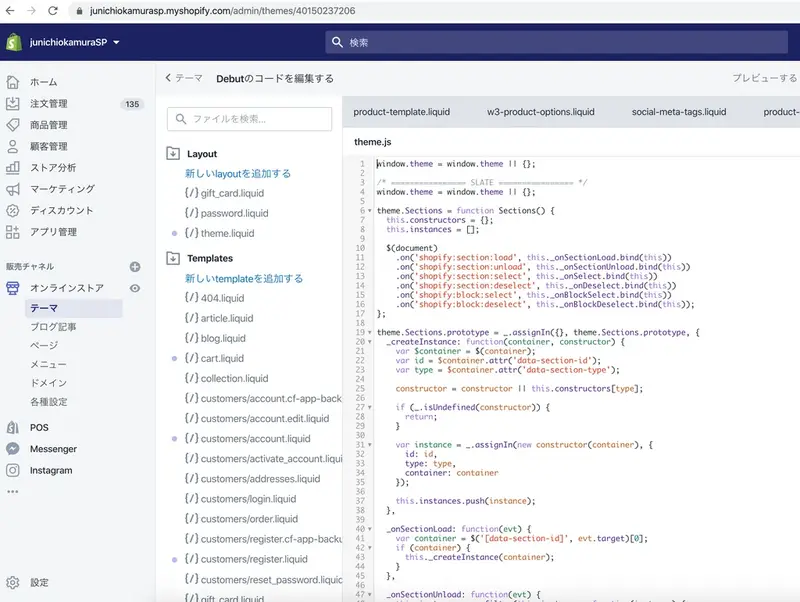
You will need the theme ID to access existing themes. There are several ways to obtain the theme ID, but the quickest way is to go to the "Themes" section, click "Actions" > "Edit Code," and copy the numbers at the end of the URL. It will be the numbers following 'mystore.myshopify.com/admin/themes/'.
Alternatively, you can run the following command:
theme get --list -p=[your-api-password] -s=[your-store.myshopify.com]
This returns a list of themes and a list of themeids within a specific store.
Hook using config.yml
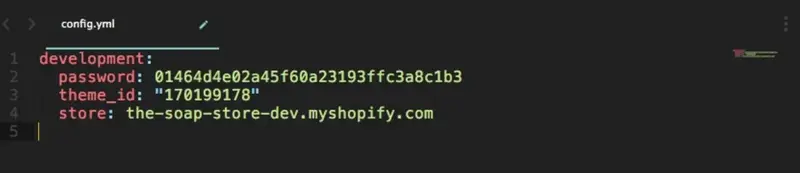
Now, using the information we've gathered so far, we can create a config.yml file within the theme and download it locally. The config.yml file is essential for integrating your Shopify store theme locally.
First, create a directory for the theme.
mkdir [your-theme-name]
Then, navigate to the directory you created.
cd [your-theme-name]
To download a specific theme and create a config.yml file to work with the local version of that theme within its directory, run the following command in the theme directory. Replace the placeholders in [ ] with your theme's information.
theme get --password=[your-api-password] --store=[your-store.myshopify.com] --themeid=[your-theme-id]
theme get --password=01464d4e02a45f60a23193ffc3a8c1b3 --store=the-soap-store.myshopify.com --themeid=170199178
This will automatically create a config.yml file and download the theme (identified by themeid) from the store. You can also manually create the config.yml file in the directory using a text editor. In that case, it would look like this:
Create a theme from scratch
If you want to create a theme from scratch, you can do so by running the following command.
theme new --password=[your-password] --store=[your-store.myshopify.com] --name="New Blank Theme"
This will create a new theme in the directory and upload a copy of the theme with the same name to your store. The two will then be linked by your theme's config.yml file.
If an error is displayed
When the API key is generated, make sure you have set the API permissions correctly. As mentioned above, set the permissions for "Theme templates and theme assets" to "Read and write" and click "Save".
Please also check these two points: either you have uninstalled the theme gem, or you are using the latest version of Theme Kit.
Step 3: Push the update
Now that the integration with the Shopify theme is established, you can run the following command in the directory.
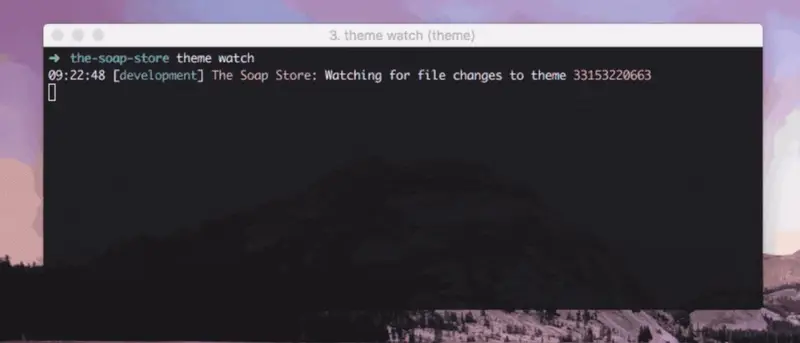
theme watch
Theme Kit detects changes to your local files and automatically pushes them to your theme. To stop watching, press Ctrl + C.
Now the Theme Kit setup is complete! 🎉
That's it! Now you can easily control versions, collaborate with your development team, use your favorite text editor, set up shortcuts, and do anything else you normally do in your local environment.
Original text: Tiffany Tse Translation: Nozomi Fukatsu
read more
- An overview of Shopify's template language, Liquid.
- [How to Use Shopify] Opening an Online Store: Basic Setup
- Things you should know about Shopify's development store
- This guide explains how to set up and specify a domain name for your online shop.
- Selling original design apparel worldwide via on-demand printing: The story of CHA2, a brand launched that aligns with their core business.
- Creating your first Shopify theme section
- 30 Stylish E-commerce Sites Built with Shopify, Selected by Designers
- [Shopify Examples] 27 Functional Designs for E-commerce Websites
- Why do storefronts using Hydrogen perform so well?
- How did the developers of the Shopify app Mechanic scale using EventBridge?
FAQ
Can I use Theme Kit to check the behavior of a theme I've modified in my local environment?
Do I always need to manually upload themes modified with Theme Kit?
Does Theme Kit update automatically?
Can Theme Kit be used on Windows?
Grow your business with the Shopify Partner Program. Whether you offer marketing, customization, web design, or development services, the Shopify Partner Program will guide you to success. Joining the program is free, offers revenue-sharing opportunities, and provides access to a wealth of tools to grow your business. Join our passionate commerce community today!
Share this article
- Share on Facebook
- Share on X
- Share on LinkedIn