跨境独立站开店
I found it! A free translation app that's incredibly easy to use.
Since Shopify announced its new Translations API, I'm sure many of you are wondering which translation app to use. To be honest, I was one of them. There are various translation options, such as Google Translate and AI translation, but for those who want to seriously localize their products, I'd like to introduce an app that I found truly impressive.

Since Shopify announced its new Translations API, I'm sure many of you are wondering which translation app to use. To be honest, I was one of them. There are various translation options, such as Google Translate and AI translation, but for those who want to seriously localize their products, I'd like to introduce an app that I found truly impressive.
Since Shopify announced its new Translations API, I'm sure many of you are wondering which translation app to use. To be honest, I was one of them.
While there are various translation tools available, such as Google Translate and AI translation, for those who are serious about localization, I'd like to introduce an app that I found truly impressive.
First up, the app everyone's been talking about is TMS Translator, which you can download from the Shopify Appstore! Amazingly, it's free, and even better, it's incredibly easy to use!
The interface is in English, but you can quickly add translations with very simple operations, so I think the language barrier is quite low.
Instructions for use
First, select 'Language' from the icon on the right. Then, choose the language you want to add and save it.
(Don't forget to add the language in your Shopify admin panel! To do this, go to Shopify admin panel > Settings > Store language > Add the language you want to translate to.)
Next, select 'Manual Translation' from the icon on the right. From here on, it's a quick and easy process.
Filtering method
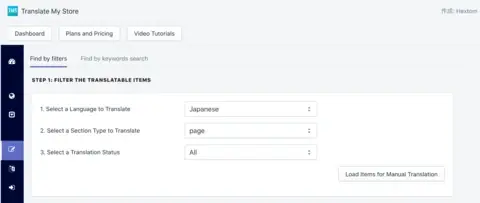
From the screen,
- Select a Language to Translate > Select the language you want to add.
- Select a Section Type to Translate > Select the section you want to translate: theme, collection, page, etc.
- Select a Translation Status: 'All' displays all content, while 'Not Translated' displays only untranslated content (in the image above, this filter applies to all content on the page you want to translate into Japanese).
After selecting a filter, press the 'Load items for Manual Translation' button.
Once the text you want to translate is displayed, simply enter the translation in the right-hand column and press 'Save' to save it!
Why is it such an excellent app?
A major plus is its ability to thoroughly translate storefront (online store theme) content. Many apps struggle to properly localize their storefronts due to synchronization issues or loading problems with theme edits, making the TMS translation tool exceptionally good. (The image above shows a filter applied to storefront content that hasn't yet been translated.)
moreover··
When you translate one word, it automatically copies all instances of the same word, reducing the manual work of translating each instance of the same phrase! (For example, if you translate "Page" to "ページ" and press the 'Save' button, a confirmation pop-up will appear asking if you want to set all instances of "Page" to be translated as "ページ".)
And one more thing...
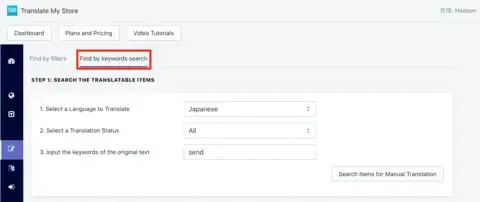
You can perform a keyword search by selecting 'Find by keywords search' from the button labeled 'Step 1' at the top. The filtering method remains the same: select the translation language and translation status from the top, and then enter your keywords. Pressing the 'Search items for Manual Translations' button will display only the content that uses those keywords.
Next, add the language switcher. Click on 'Language Selector' on the left, check the color and layout, and then turn 'Selector Enabled' to 'ON'. Your multilingual website is now complete!
We've implemented TMS translation functionality on a webpage for another project. Please feel free to take a look if you're interested.
As the name suggests, ISSHONI was created with the intention of moving forward together with businesses and partners. Our main business activities are based on four pillars: analysis, identification, countermeasures, and execution, providing consulting, advisory, and matching services related to e-commerce in general and Shopify. We offer services in both Japanese and English, and fully support consultations with a view to global expansion.
I hope to repay the great kindness I received when setting up Shopify by creating something tangible, and to work together with everyone to liven up the e-commerce industry.
read more
- How to Start Cross-Border E-commerce: Why Shopify is Recommended for Overseas Sales Stores
- [How to Use Shopify] Opening an Online Store: Basic Setup
- This guide explains how to set up and specify a domain name for your online shop.
- Regarding rate limits
- [Complete Guide to E-commerce] Shopify is recommended if you want to sell overseas.
- [Comprehensive Guide] How to Start a Subscription-Based Online Shop
- How to get started with digital content ideas and download sales
- Customize your Shopify store even further! 11 apps you can use right away.
- We have released an app for batch price changes in preparation for the consumption tax increase.
- What makes a return policy that drives sales? How to create a return policy and four important points to consider.
FAQ
Can you translate my Shopify store?
What are some recommended Shopify translation apps?
Share this article
- Share on Facebook
- Share on X
- Share on LinkedIn