跨境独立站开店
Shopify Flow scheduling and automation templates
This guide introduces Shopify Flow scheduling and automation templates. Learn how to retrieve and process customer, order, and product data regularly to automate your e-commerce operations and improve operational efficiency.
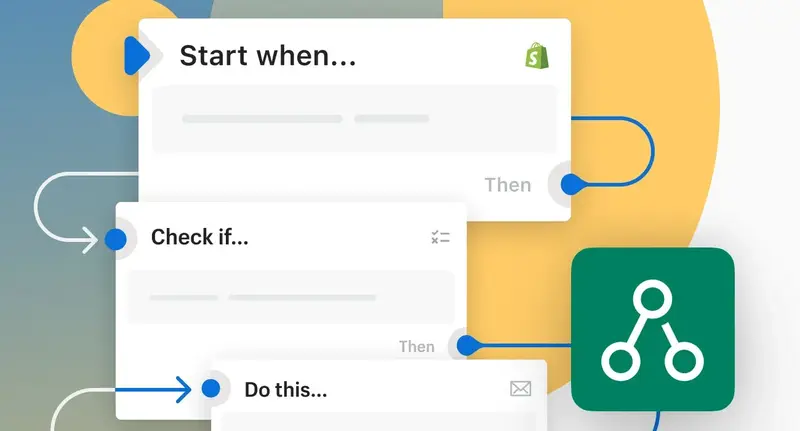
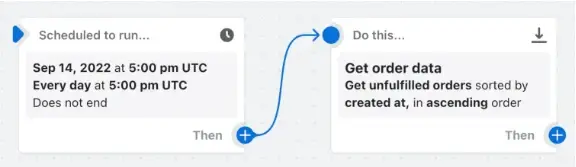
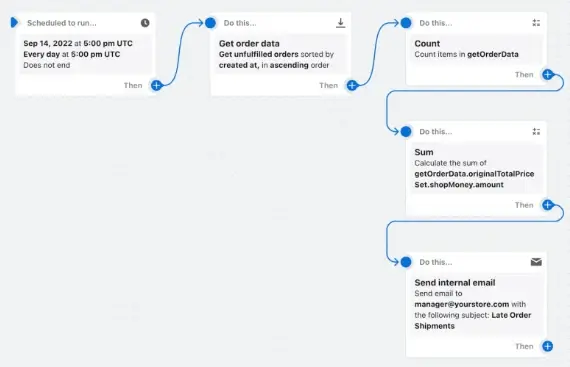
This guide explains how to use Shopify Flow's scheduling, data retrieval, loops, and aggregation actions, and introduces automation templates useful for order and inventory management.
Shopify Flow is an e-commerce automation tool that automates order and inventory management. By retrieving and processing order and product data at specified times, it automates periodic checks and report generation, leading to improved operational efficiency and productivity.
This article explains how to execute workflows triggered by specified times, how to retrieve data such as orders and products, and how to perform loop processing and aggregation, as well as how to use Sidekick for workflow creation support. Please also refer to the templates that can be used for order management and inventory checks.
Automation expands with scheduled execution and data acquisition.
In Shopify Flow, it's common to trigger workflows based on events. However, if there isn't an event trigger for the process you want to automate, or if you want to run it at a specific time, or if you're working with lists of data, you can create advanced workflows by combining "Timed" triggers, "Get Data" actions, and "Loop Through Fields."
For example, you can set up a workflow to retrieve orders that haven't been fulfilled after a two-day shipping period at a set time each day and tag those orders. Furthermore, you can compile the total number and value of orders and send a summary via email. You can also create a workflow to retrieve a list of out-of-stock items and receive it via email daily.
How to schedule and retrieve data in Flow
Typically, workflows are created by combining conditions and actions, starting with a trigger that runs when an event occurs. On the other hand, for processes that do not have a corresponding trigger, processes that need to be executed at a specific time, or processes that handle lists of data, you can create a workflow by combining a "specified time" trigger, a "get data" action, and an "item loop" as needed.
The "Specified Time" trigger allows you to specify a date and time for a one-time execution, or set it to repeat by the hour, day, week, or month. It can also run at intervals as short as 10 minutes. Since data such as orders and products are not automatically passed when executing a scheduled task, you specify search criteria in the "Get Data" action to retrieve the necessary data as a list. The data that can be retrieved includes customers, orders, products, companies, collections, draft orders, and subscription agreements, and a maximum of 100 items can be retrieved in a single action.
To process each item in the retrieved list individually, use the "loop through each item" function. For example, you can set up a process to tag each order in the list.
Using "Count" to count the number of items in a list, or "Sum" to add up the values within a list, you can aggregate data and use it for subsequent conditions and actions. For example, you can create a workflow that tags orders that are delayed in shipping and sends an email notification with the total number and amount of those orders.
When using dates in the query for the "Get Data" action, you can adjust the dates using the "date_minus" and "date_plus" tags in Shopify's template language, Liquid.
Instead of building triggers, data retrieval, and loops yourself, you can also let Sidekick help you create scheduled workflows. For example, you can ask it to "email me every morning a list of orders that haven't been shipped in the last two days."
Examples of using scheduled execution and data acquisition
Shopify Flow allows you to create workflows using scheduled execution and data retrieval. Below are some examples of how you can use it for order and product confirmation, tagging, notifications, and more.
1. Retrieve a daily summary of orders that have passed their shipping deadline.
Every day, we retrieve orders that were not fulfilled within a two-day shipping period. We tag these orders, tally the number of orders and total value, and send a daily summary via email.
Install the template
2. When a new order comes in, check the customer's most recent order.
When a new order is created, we retrieve and count orders the same customer has placed in the past 24 hours. If there are two or more orders, we put the fulfillment of the relevant orders on hold and tag them.
3. Receive a daily email list of out-of-stock items.
Every day, we retrieve out-of-stock items, count the number of items, and send a list of items and the count via email.
4. Search for orders related to chargebacks and tag the customers.
Every day, we retrieve orders with chargebacks and tag the customers who placed those orders.
5. When a new order comes in, check the customer's order count for the past 6 months.
When a new order is created, we retrieve the customer's orders from the past six months and check the number of orders and the total amount. For example, we add different tags to the customer if they have 5 or more orders, or if their total order amount is $100 or more.
6. Retrieve unpaid draft orders daily and notify the number via Slack.
Every day, we retrieve draft orders with the status "Open," count the number of orders, and notify Slack of the number of unpaid draft orders.
Using Shopify Flow for scheduled execution and data retrieval is one way to automate e-commerce. By combining time-based triggers, data retrieval, loops on specific items, and aggregation actions, you can automate order and product confirmation, tagging, notifications, and more. Start by creating a workflow that suits your daily tasks, using a template as a reference.
Frequently Asked Questions about Scheduled Execution and Data Retrieval of Shopify Flow
How often should the time-specified trigger be executed?
Triggers set to run only once, or they can be configured to repeat at intervals of an hour, day, week, or month. They can even run at intervals as short as 10 minutes.
Why is data acquisition necessary for scheduled execution?
This is because time-based triggers do not automatically pass data related to events such as order creation. Therefore, you need to use the "Get Data" action to search for and retrieve the necessary data, such as orders and products.
What is the data retrieval limit for the data retrieval action?
A maximum of 100 data points can be retrieved in a single action.
How do I process the retrieved data list?
To perform individual processing on each item in the list, use the "Loop through each item" function. You can also count the number of items using "Count" or add up the values in the list using "Sum".
Share this article
- Share on Facebook
- Share on X
- Share on LinkedIn