跨境独立站开店
How to share your screen on Zoom and troubleshooting steps if screen sharing doesn't work (PC, smartphone, tablet)
When using Zoom for online communication, many people have wished they could share their screen as well as their words. This article explains how to use Zoom's image sharing feature and how to troubleshoot if it doesn't work properly.




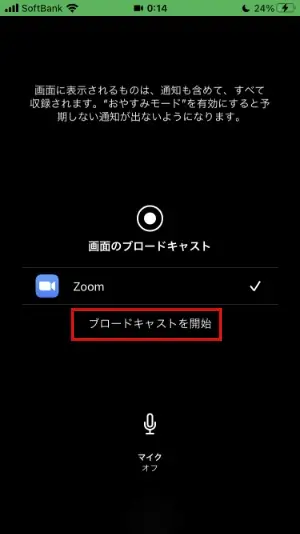
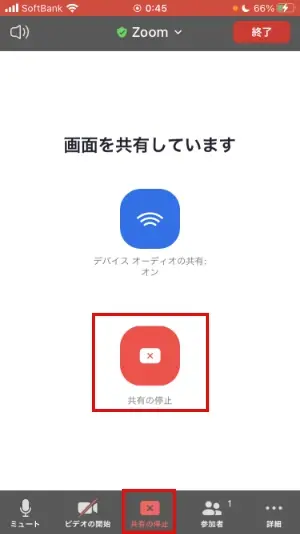
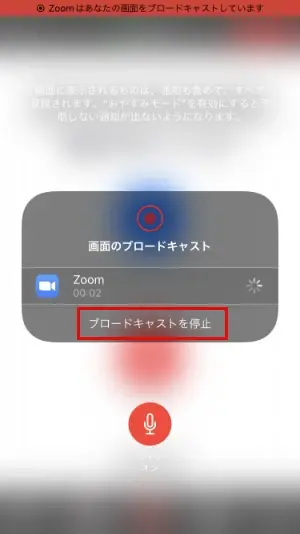


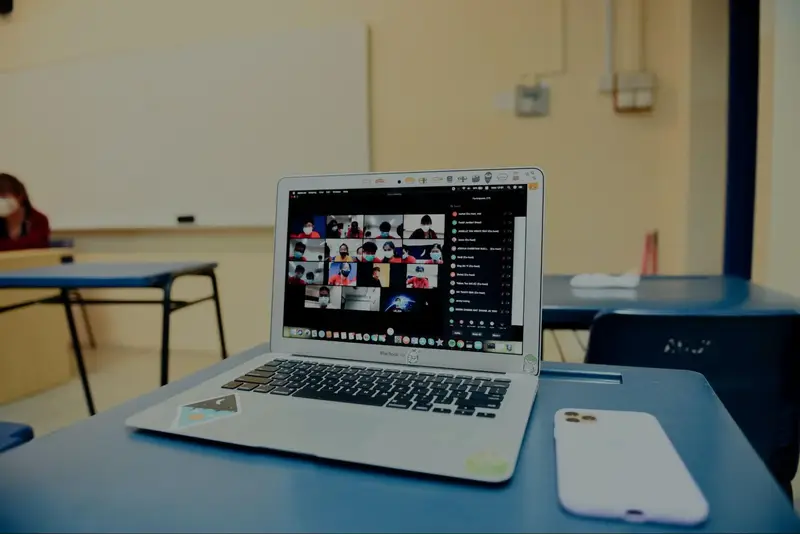
What is Zoom image sharing?
When you need to convey information that is difficult to explain through words alone during an online meeting, you can use Zoom's image sharing feature.
What you can do with Zoom screen sharing
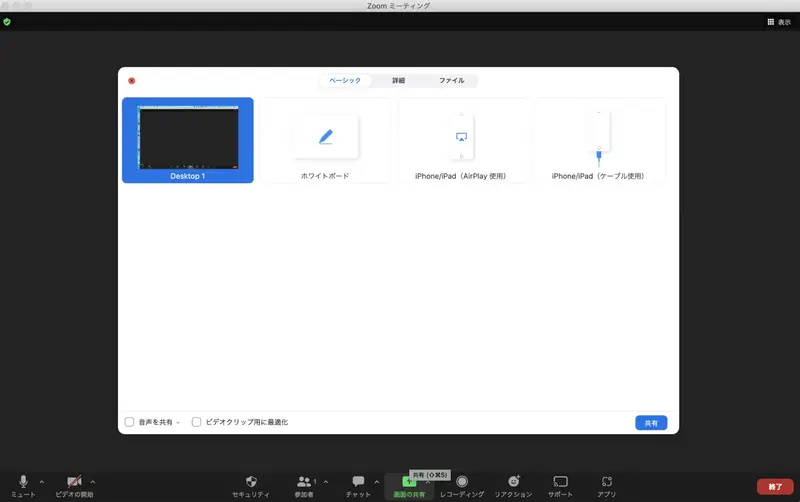
Zoom's screen sharing feature allows you to share your desktop screen, the application you are currently viewing, and your whiteboard.
How to share your screen on Zoom
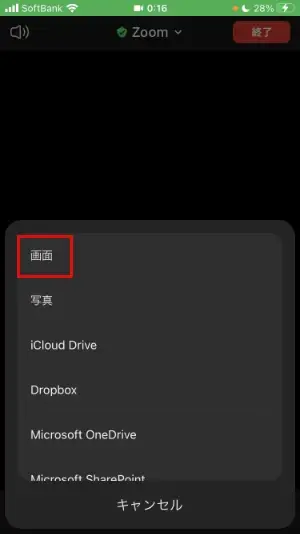
Zoom allows you to share your screen from PCs, smartphones, and tablets, but the method for sharing your screen differs depending on the device. Therefore, we will now explain in detail how to share your screen on Zoom using each device.
For PCs
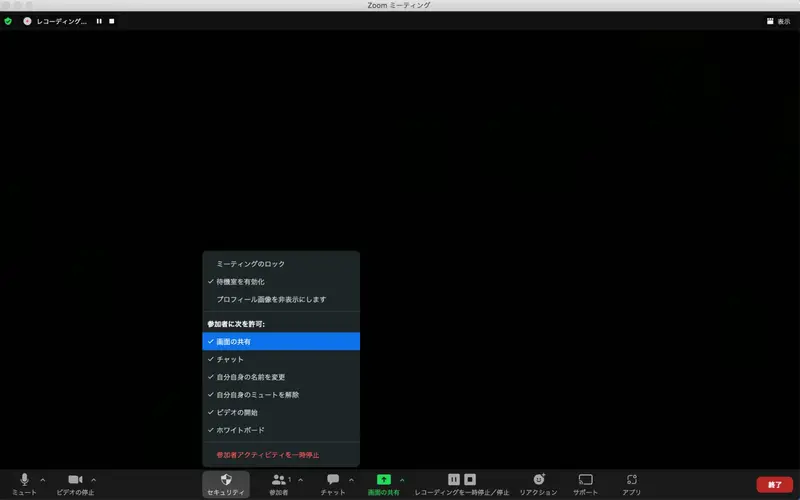
When you share your screen, the meeting controls menu, normally located at the bottom of the screen, moves to the top, and the screen-sharing controls menu is displayed at the bottom of the screen. The following is an overview of the screen-sharing controls menu: