跨境独立站开店
How to Install, Preview, Publish and Roll Back a Shopify Theme
Build on a copy, test the entire shopping path on mobile and keep the previous theme available. A theme backup restores different information from a product or order export.
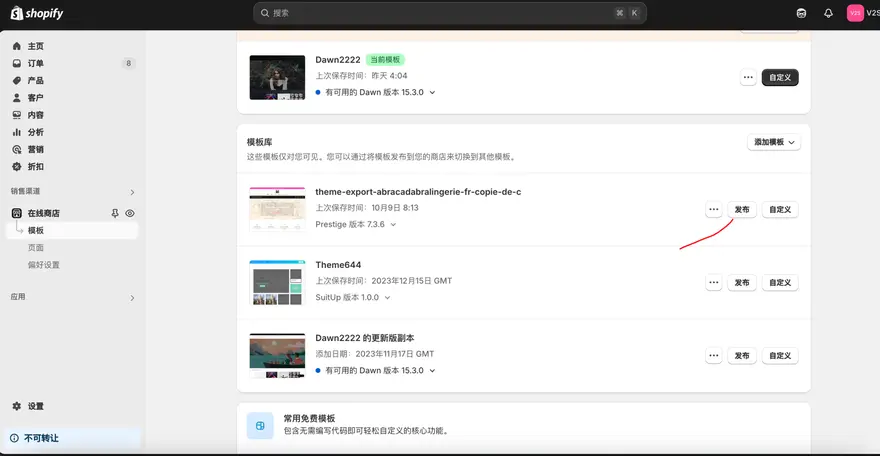
Identify the current topic and the topic library
In the backend, go to "Online Store → Themes". The current theme is for receiving real visitors, while the library below stores backup themes and unreleased versions. Add a date and purpose of changes to the working copy, such as "Autumn Series Menu", before entering the editor to avoid mistakenly treating the current version as a draft.
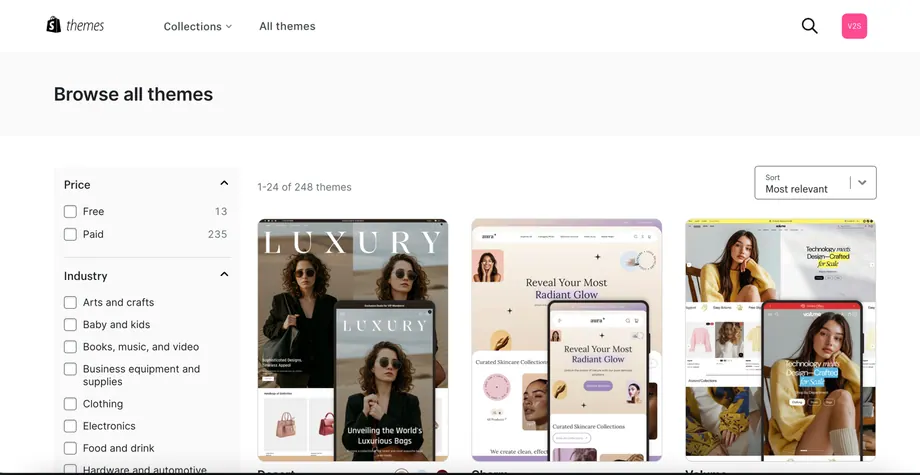
Install candidate topics
When selecting from the theme store, first preview the product details, series list, and mobile menu to check if your products require color swatches, size charts, or filtering. Add suitable themes to your library and confirm the authorization or purchase conditions as prompted on the interface. If you already have an authorized theme ZIP, you can select to upload it from the theme library; retain the original ZIP, authorization information, and version number.
Save changes with a copy
Open the current theme's operation menu, select copy, and modify the copy. Download the theme file separately before making major changes. The theme package saves the layout and theme code; products, customers, and orders are saved separately in the store. If you simultaneously adjust the navigation menu, prices, or other store data, record these changes separately for easy review.
Design pages by hierarchy
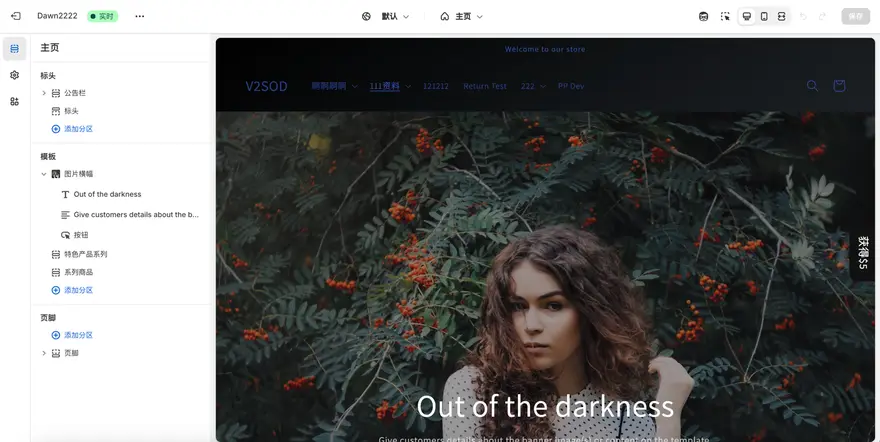
First, establish a consistent text, button, color, and brand style in the theme settings. Switch to the homepage, product, or series template to decide which sections to use for each page, and then configure the blocks within each section. Complete one typical product first, then switch to another product with less information to check if empty fields have empty titles or excessive whitespace.
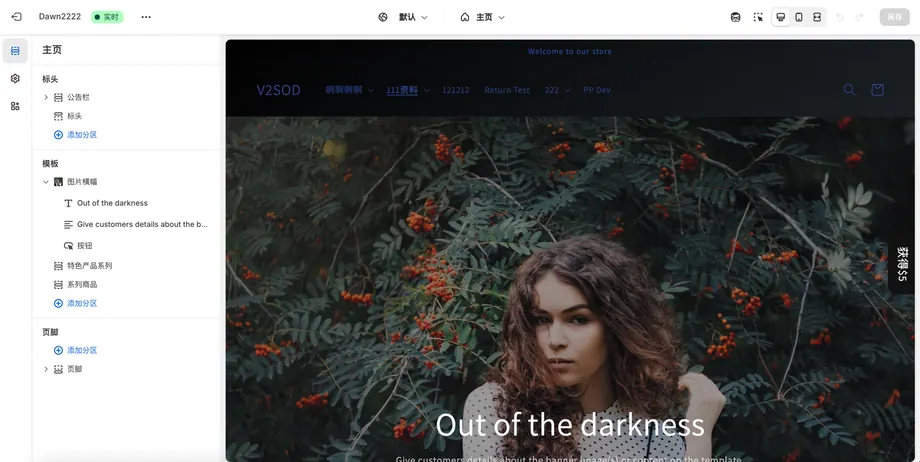
Acceptance on mobile and desktop
- Switch to mobile view in the theme editor and check if the products and main operations are clearly visible on the first screen, and whether the banners and images are overflowing the screen.
- Expand and collapse all menus, switch sizes, add items to your cart, and proceed to checkout. Open the copy preview on your actual phone to review it again.
- Open the shipping, privacy, and return/exchange guidelines in the footer and replace all sample text or images. If the first screen is noticeably slower, check the banner size, font files, and newly enabled app embeddings in that order.
Released during periods of low traffic.
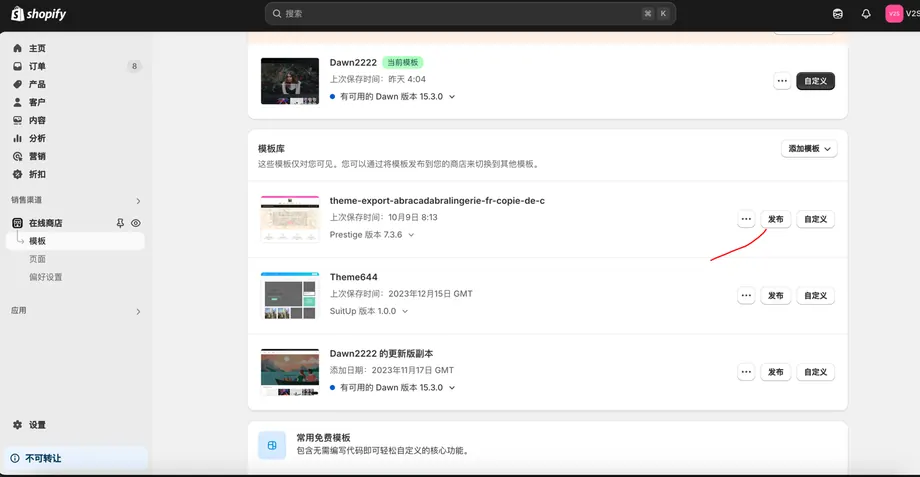
Keep the current theme, select the completed copy, and publish it. Revisit the homepage, products, and shopping cart in a separate visitor window. If the new theme affects purchases, return to the theme library, republish the original theme, and then locate the issue in the problematic copy; this operation only switches the theme and does not undo changes to product information.
How to retain customization in the next update?
Write modified files, application embeddings, fonts, and their rewrites into the change log. When a new version arrives, compare the new version with the current copy in the theme library, and then migrate any code that is deemed necessary. Prioritize using global styles that can be configured through the editor. This allows for accurate identification of which projects need retesting during the next update.