跨境独立站开店
Let's start preparing for the transition to displaying total prices.
Stores selling to Japanese customers are required to display total prices including consumption tax by the end of March 2021. This article summarizes how to check your current settings, as well as the procedures and tips for switching over.
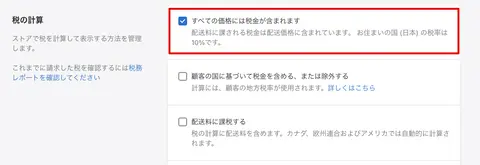
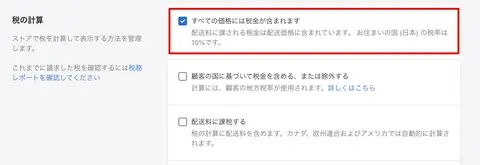
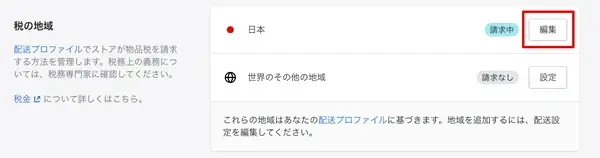

Procedure for switching to displaying total price
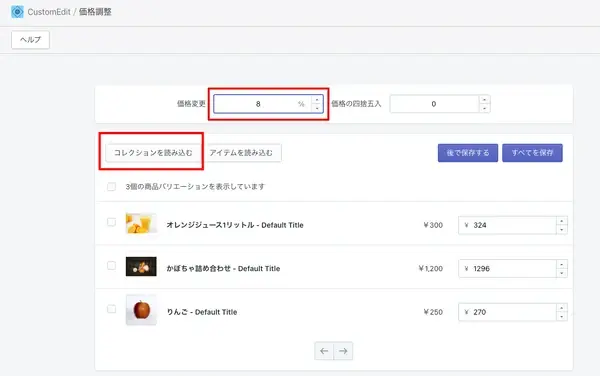
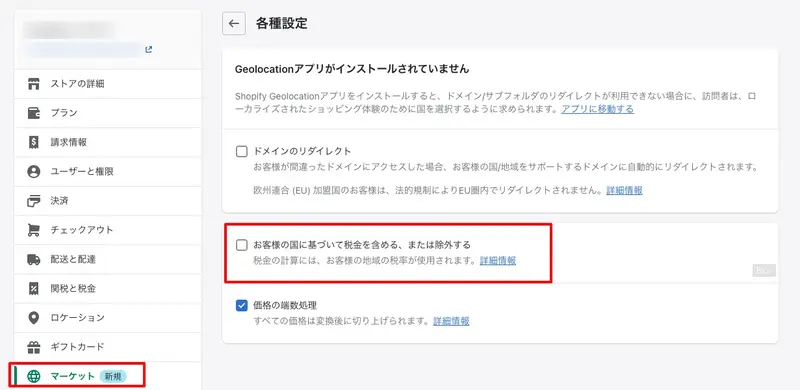
Switching to displaying total prices is completed by checking the "Display products at tax-inclusive prices" option under "Tax Calculation." However, the prices of products registered before the switch will remain as tax-exclusive prices, so you will need to update them to tax-inclusive prices. Here, we will guide you on how to update product prices using the ByWard Labs CustomEdit app.
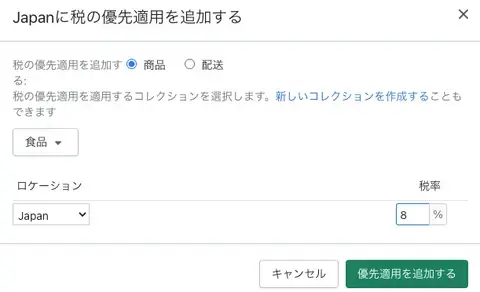
How to apply the reduced tax rate
If you want to apply the reduced tax rate to only some products, create a collection of those products in advance and apply the reduced tax rate to that collection in the following way.
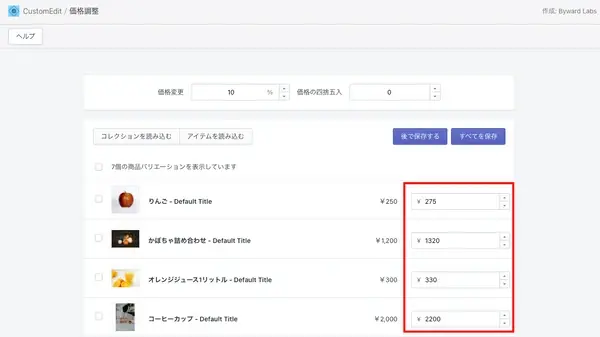
Update product price with CustomEdit
We've previously introduced CustomEdit, which allows you to update the prices of multiple products, but this time, let's use this app to update the prices of products that were registered before the switch to displaying total prices.
If you also sell to overseas customers
If your store primarily sells to Japanese customers but also sells to overseas customers, you will need to sell to overseas customers at a price excluding consumption tax. In the admin panel, go to "Market" > "Other Markets" > "Settings" and check "Include or exclude tax based on customer's country." If the customer's address is outside of Japan, the shopping cart contents will be automatically updated and charged at the price excluding consumption tax.