跨境独立站开店
How to Remove the Storefront Password and Launch a Shopify Store
Check the products, shipping information and checkout before opening the store. Then turn off storefront password protection and verify access in a signed-out browser.
Preview before lifting restrictions
From the homepage, navigate to a real product page to check the price, available sizes, shipping instructions, and contact information. Use your mobile phone to confirm that the menu expands, the shopping cart opens, and the policy page contains actual content. If the product is still in the preparation stage, retain the protection and inform internal staff of the preview arrangements.
Find the password settings for the online store.
Log in to the target store's backend and confirm that the store displayed at the top of the page is the one you want to make public. Go to "Online Store → Preferences" and find the store access or password protection area. If the backend provides a shortcut to remove the password, you can also access it from the theme page. This is where you manage customer access passwords for the store, and it is independent of the administrator's login password.
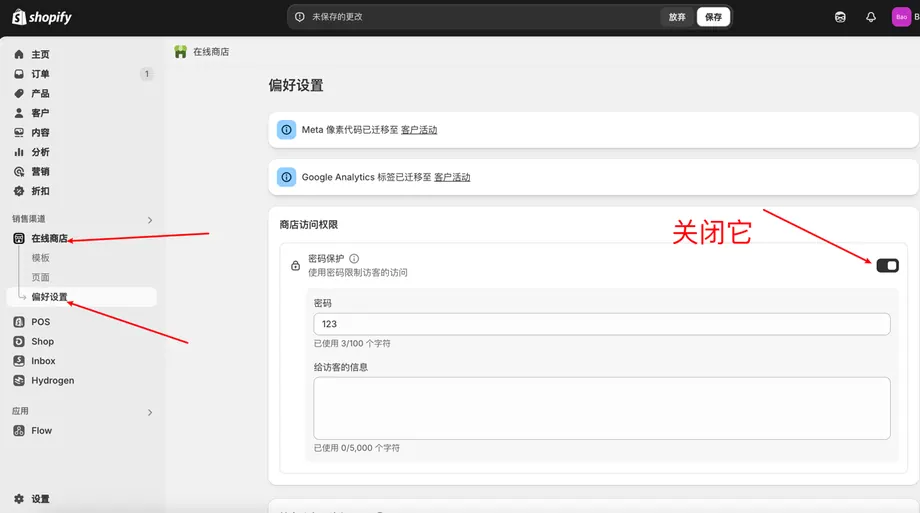
Remove store protection and save
Cancel the option to restrict visitor access on the current screen, or use the "Remove Password" option and save. If prompted to select a plan first, please verify the trial and current billing arrangements. Do not use a protected address as an advertising landing page before confirming the public terms.
Inspection from the perspective of real visitors
- Open a new incognito window and directly enter the main domain name. The preview window in the logged-in admin panel cannot replace this test.
- Open the product details page from the homepage, then directly access a public product link; both should be accessible.
- If multiple marketplaces or domains are enabled, open the respective entry points for external promotion. Confirm that the final address after redirection does indeed belong to the store that has been activated.
The settings cannot be found or the password page still appears.
First, check if the account has the corresponding store or theme management permissions, the sales channels currently in operation, and the status of packages and trials. After saving, go back to the preferences settings to confirm the switch, and then check again with a new browser session. If only one bound domain is abnormal, check the store that the domain points to; if you see the backend login page, check if the entered address is a public store. If you do not want it to be publicly accessible for the time being, you can re-enable password protection in the original settings and check the visitor page.