跨境独立站开店
New tool to manage app billing in the Partner Dashboard
We're introducing a new billing management tool available in the Partner Dashboard. This tool makes it easier to understand when your app billing is paid and provides useful, at-a-glance information to better support your app users.
We're introducing a new billing management tool available in the Partner Dashboard. This tool makes it easier to understand when your app billing is paid and provides useful, at-a-glance information to better support your app users.
Whether your app is just starting to see a number of paying subscribers or scaling up to tens of thousands of merchants, a stable billing support process is essential to support merchants and streamline internal operations.
To make this process easier for app developers, we've launched new billing management tools available in the Partner Dashboard. These tools make it easier to see when your app bills are paid and provide useful, at-a-glance information to better support your app users.
Furthermore, the partner dashboard allows for direct processing of app refunds, enabling you to respond individually to merchant inquiries regarding billing.
In this article, we'll look at how to make the most of these new tools.
Building an app for merchants
Streamline your app billing cycle on the billing status page.
App developers often wonder how their app's subscription cycle is reflected in their merchant billing, as this is the fundamental principle for receiving payments for their app sales. The start and end dates of an app's subscription cycle are separate from the merchant's Shopify billing cycle, and app billing falls under the merchant's 30-day billing cycle (for more details, see our blog post "Receiving Payments: An Overview of the Shopify App Billing Cycle").
However, predicting the relationship between an app's subscription cycle and a merchant's Shopify billing cycle can be challenging. The new billing status page addresses this by clearly displaying billing dates for key apps, helping app developers understand when payments are due.
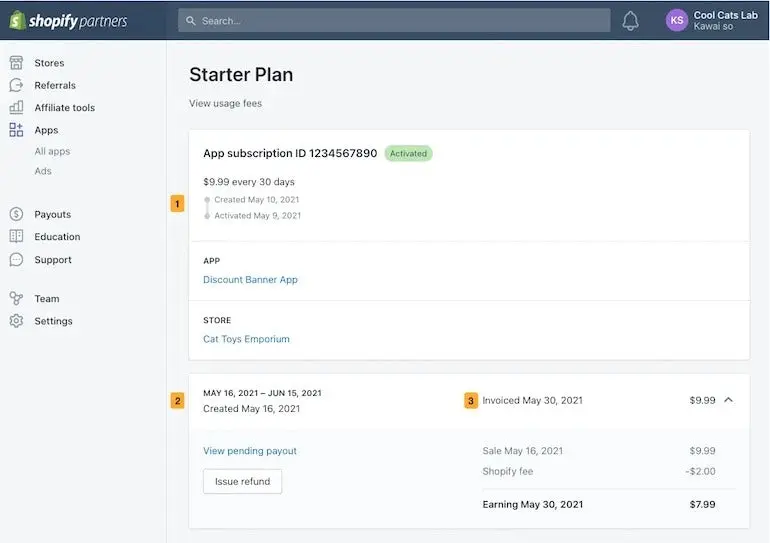
The billing status page includes the following information:
- App Billing Status Dates (1): You can check the main dates of the app's billing status progression, from creation to activation and cancellation. This information is also useful for troubleshooting user-related app billing issues.
- App Subscription Cycle (2): The start and end dates of a 30-day or yearly subscription are clearly defined. The app subscription cycle usually starts after the trial period ends. In the example below, the trial ends on May 16th.
- Merchant billing date (3): Most importantly, this page lists the date each app's billing was added to the merchant's Shopify invoice. Below, the app billing cycle from May 16th to June 15th was added to the merchant's Shopify invoice on May 30th.
By consolidating Shopify-related billing into a single invoice, merchants can more easily manage the costs associated with running their store. For more details on how app charges appear on merchant invoices, please refer to the Help Center.
Understanding when app payments are made.
The billing status page also includes other information that makes it easier to understand how your app charges are being paid. For example, the following information:
- Payment Link: Once the merchant pays Shopify's 30-day bill (including app charges), the partner's earnings (and corresponding payment link) will be issued. Please note that only app charges paid by the merchant will be displayed on the billing status page.
- Shopify Fees: These show the outsourcing fees per sale for each app.
- Partner Income: This shows the net amount paid to the developer.
For more details on the billing status page, please refer to the developer help documentation (in English).
Supporting individual merchants with app refunds
Even if a customer cancels their subscription, increasing their satisfaction is key to improving your app's rating and getting positive reviews.
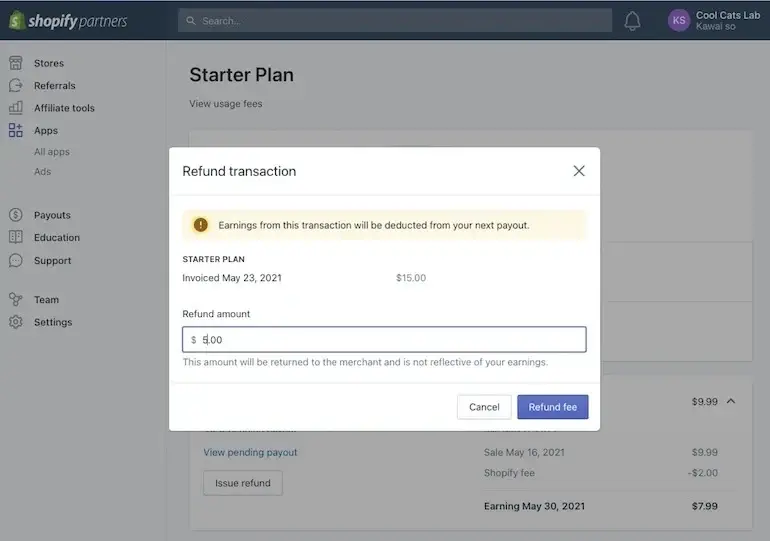
To address this, we've introduced a refund feature for our apps. This is a new billing tool that allows developers to issue refunds directly from their partner dashboard. Refunds can now be issued from the billing status page without having to contact Shopify support.
To process refunds directly from the Partner Dashboard, please follow these steps:
- Find the invoice to refund: Go to the merchant's store page and find the invoice to refund on the billing status page. Please note that only in-app charges that have already been paid are eligible for a refund.
- Issuance of full or partial refunds: We offer flexible options, allowing you to receive a full or partial refund.
- Merchant Confirmation: Once you've processed the refund, we recommend notifying the merchant that the refund has been issued. This will allow the merchant to easily find the refund record in their Shopify invoices.
In addition to streamlining the back-office billing process, it includes a built-in feature that ensures only authorized team members can process refunds.
- "Refund Management" permission: This is a new user permission granted only to users within a team. Only approved team members can process refunds.
- Refund Limit: You can only request a refund from your Partner Dashboard for app charges of $1,000 or less from invoices issued within the past year. If you require a refund outside of this range, please contact the Shopify support team.
Details about the refund process can be found in the document (in English).
Let's streamline our support system.
These new billing management tools will enable your team to efficiently and individually address common billing support inquiries from merchants. Support is a crucial touchstone for providing excellent customer service, gathering product feedback, and establishing a strong reputation on the Shopify App Store.
Most importantly, the billing information page and in-app refund tool will free up your time, allowing you to focus on developing impactful products to help more merchants grow.
Original text: Kawai So Translation: Nozomi Fukatsu
Share this article
- Share on Facebook
- Share on X
- Share on LinkedIn