跨境独立站开店
How to exclude a Shopify page from the index
This guide provides a detailed, image-based explanation of how to add a nofollow tag to indexed pages in your Shopify store to exclude them from the index.


This article explains how to disable indexing for Shopify pages and which pages should be indexed using the noindex tag.
When running a Shopify store, pages that don't need to be displayed in search results can sometimes be indexed. For example, duplicate content, outdated articles, or pages that are not intended to drive search traffic.
This article provides a clear explanation based on information available as of 2026, covering everything from examples of pages that should be excluded from the index to how to disable indexing for Shopify pages and the specific steps for setting noindex.
What is a noindex tag?
The noindex tag is an instruction that tells search engines, "Please do not display this page in your search results." When you set noindex in the HTML of a web page, search engines such as Google will recognize this instruction when they crawl the page and exclude it from their search results.
However, setting `noindex` does not delete the page itself. As long as the page is publicly accessible, it can still be viewed by directly entering the URL or accessing it through a link within the site. Therefore, it is suitable for pages that you do not want to appear in search results but still want to make public to users.
Pages that should be set to noindex in Shopify
We recommend setting the following types of pages to noindex:
- Landing pages: For pages that are not intended for search traffic, such as those dedicated to advertisements or campaigns, consider setting them to noindex.
- Duplicate content: If you have multiple pages with almost identical content and they don't need to appear in search results, consider setting them to noindex.
- Outdated blog posts: For posts with outdated information that you don't plan to update, consider whether it's necessary to keep them in search results and, if necessary, set them to noindex.
However, for pages that receive traffic from search engines or are linked to frequently from external sites, it is important to consider updating or merging them before setting them to noindex.
How to disable indexing of Shopify pages
- Choose which pages to hide from search engines.
- Create a seo.hidden meta field.
- Set noindex for the target page.
- Waiting for search engines to recrawl
1. Decide which pages to hide from search engines.
First, decide which pages to hide from search engines based on their purpose and the need for search traffic.
For example, landing pages dedicated to web advertising, pages with overlapping content with other pages, and outdated articles that are not scheduled for update are candidates for noindex. On the other hand, pages that contribute to attracting visitors, such as product pages, collection pages, and blog posts with a high volume of search traffic, should be carefully considered.
Setting a noindex tag on an important page by mistake can exclude that page from search results like Google's, potentially reducing organic search traffic. Before making this change, review the page's role and traffic to determine if it truly needs to be displayed in search results.
2. Create the seo.hidden meta field.
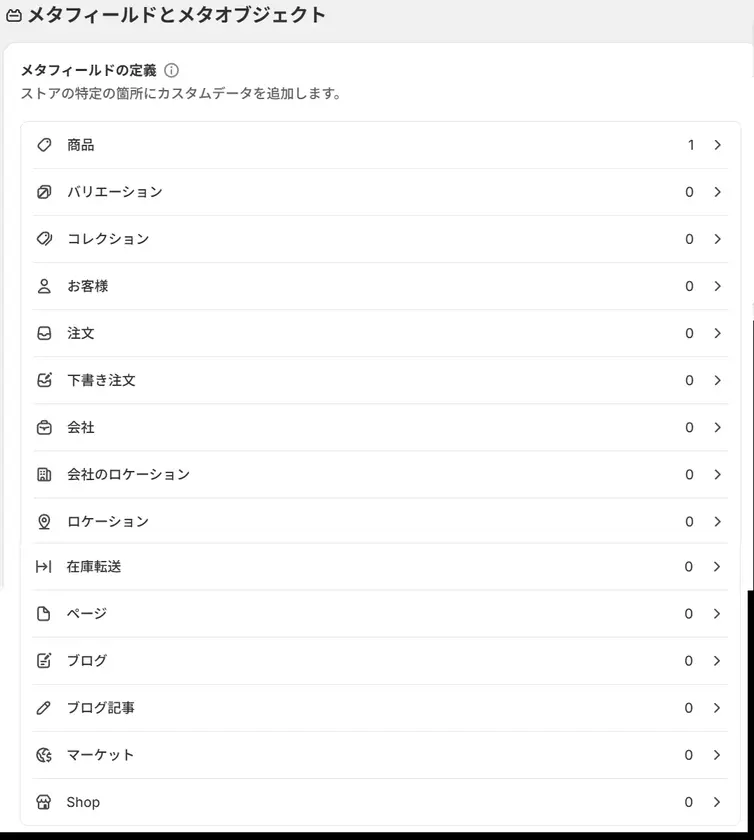
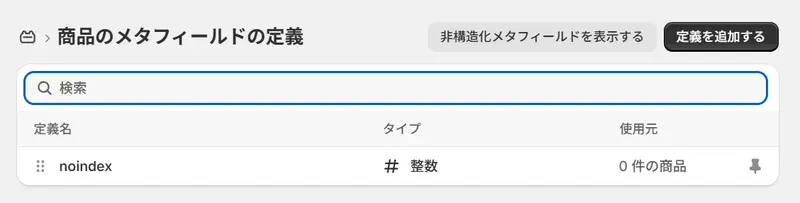
From the Shopify admin panel, go to "Settings" > "Meta Fields & Meta Objects (formerly Custom Data)" and select the type of content you want to set noindex to. For example, select "Products" if you want to target product pages, or "Blog Posts" if you want to target blog posts.
Go to the meta field settings by selecting "Add Definition," and enter a descriptive name such as "noindex" for the name. Specify seo.hidden for the namespace and key, and select "Integer" for the type. Set the value to "Single Value," and enter 1 for "Maximum" in the "Value Range" under validation.
When setting up meta fields, it's crucial to correctly specify the namespace, key, data type, etc. Incorrect meta field settings may prevent search engines from receiving the necessary information even if you set values for the target page. After creation, check that the meta fields are displayed on the target page's editing screen.
3. Set noindex for the target page.
Once you've created the seo.hidden meta field, set its value to the pages you want to exclude from search results. Open the relevant product, page, blog post, etc., from your Shopify admin panel and check the meta field at the bottom of the page.
Enter "1" as the value for the seo.hidden meta field you created and save. Once set, the target page will be set to noindex, instructing search engines not to display it in search results.
However, if you select the wrong page, you may end up excluding pages that you actually want to attract search traffic to from search results. Before saving, be sure to check the page's URL and content to confirm that you are setting noindex to the correct page.
4. Wait for search engines to recrawl the page.
Setting a page to noindex doesn't necessarily mean it will immediately disappear from search results. Search engines like Google need to recrawl the page and recognize the noindex instruction before it's reflected in the search results.
The time it takes for the changes to take effect varies depending on the page and site, and may take anywhere from a few days to several weeks. After making the changes, check after a certain period of time to make sure the changes have been applied correctly.
You can also use the URL Inspection tool in Google Search Console to check if the changes have been reflected. If the noindex tag is correctly recognized after recrawl, the target pages will be gradually removed from search results. After that, periodically check to make sure that only the intended pages are being excluded.
Shopify allows you to exclude pages that don't need to appear in search results from the index by setting `noindex`. This primarily applies to landing pages dedicated to ads, duplicate content, and outdated articles.
When configuring this, first carefully select the pages to exclude and create a seo.hidden meta field. Then, set the meta field value for the target pages. After configuration, the pages will not immediately disappear from search results; you need to wait for the search engine to re-crawl them.
Excluding important pages by mistake can negatively impact search traffic, so it's crucial to check your settings before and after making any changes. Carefully identify the target pages to effectively optimize your Shopify store's search engine rankings.
Frequently Asked Questions about noindex on Shopify
Does setting `noindex` in Shopify delete the page?
No, the page itself is not deleted. The `noindex` setting instructs search engines not to display the page in their search results. You can still access the page by directly entering the URL or through an internal link within the site.
Does setting `noindex` immediately remove a page from Google search results?
It doesn't necessarily disappear immediately. Search engines like Google will recrawl the page, recognize the noindex setting, and then reflect it in the search results.
Is it possible to set noindex on Shopify product pages?
Yes, you can set it up. However, since product pages often generate search traffic, you should review search traffic and the page's role before making any changes.
Share this article
- Share on Facebook
- Share on X
- Share on LinkedIn