跨境独立站开店
KOMOJU launches smartphone payment service.
KOMOJU has released a new service called "Smartphone Payment - KOMOJU". By adding "Smartphone Payment - KOMOJU", you can add LINE Pay, Merpay, and PayPay payment options to your Shopify store.

KOMOJU has released a new service called "Smartphone Payment - KOMOJU". By adding "Smartphone Payment - KOMOJU", you can add LINE Pay, Merpay, and PayPay payment options to your Shopify store.
KOMOJU has released "d Payment." This means that KOMOJU can now implement five smartphone payment services—PayPay, LINE Pay, Merpay, au PAY, and d Payment—for free.
About KOMOJU's "Smartphone Payment"
While smartphone payment methods like PayPay are popular in physical stores, they have also become a major payment method for online transactions.
The introduction of smartphone payment services such as PayPay and d払い will enhance payment options, leading to many benefits such as preventing shopping cart abandonment and attracting a wider customer base.
Merchants using payment services typically need to apply for and configure each payment method separately. Some payment processing services also require initial and monthly fees for each payment method, but with KOMOJU, all of these are free. After registering with KOMOJU and applying for each payment method, you can easily introduce mobile payments to your store by simply activating the mobile payment method provided by KOMOJU in Shopify.
Smartphone payment - Payment example at KOMOJU
If you are accessing via smartphone
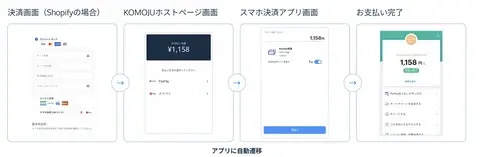
① From the Shopify payment screen, select mobile payment and click the payment button.
② You will be redirected to the KOMOJU payment screen, where you can select your preferred payment method.
③ You will be automatically redirected to the payment method app, where you will make the payment. After the payment is complete, you will be automatically redirected to the Shopify Thank you page.
By selecting a payment method on a smartphone with the relevant payment app installed, you can proceed from the Shopify payment screen, through the KOMOJU page, to the selected app's screen and complete the payment process.
If you are accessing the store on a PC
For detailed information on how to implement KOMOJU's smartphone payment system, please click here.
Share this article
- Share on Facebook
- Share on X
- Share on LinkedIn