跨境独立站开店
Integrating Messenger with your store? Let's try a new way of selling products.
Have you ever used Facebook Messenger? With 2 billion monthly active users worldwide and 28 million users in Japan, Facebook is the world's largest social media platform, truly an integral part of people's lives. Messenger is the messaging function that underpins Facebook. But did you know that Messenger can actually be easily integrated with Shopify?

Have you ever used Facebook Messenger? With 2 billion monthly active users worldwide and 28 million users in Japan, Facebook is the world's largest social media platform, truly an integral part of people's lives. Messenger is the messaging function that underpins Facebook. But did you know that Messenger can actually be easily integrated with Shopify?
Have you ever used Facebook Messenger?
With 2 billion monthly active users worldwide and 28 million users in Japan, Facebook is the world's largest social media platform, truly an integral part of people's lives. The messaging function that underpins Facebook is Messenger.
And according to news released by Facebook in September of this year, Messenger's monthly active users have surpassed 1.3 billion! That means it's used by approximately one in six people worldwide, making it truly one of the world's largest messaging services!
But did you know that Messenger can actually be easily integrated with Shopify?
You can turn Messenger into an e-commerce site and sell products within that Messenger app.
Today, we're revealing how to integrate Shopify with Messenger!
(In fact, by linking Shopify with Facebook, you can easily sell your products on your Facebook page as well. Check out this article for detailed instructions on how to do so.)
Benefits of integrating with Messenger
What are the advantages of integrating Shopify and Messenger to sell products?
One of the advantages is that it allows us to provide customers with an experience that makes them feel like they are actually in the store.
When you're looking at products in a store, the staff often strike up a conversation with you, right?
Your customers can virtually experience being shown various products by the store clerk and asking them personal questions about them—all through Messenger!
Bringing customers closer to the online shop can make the store more approachable, foster a sense of familiarity, and create a more comfortable atmosphere for communication.
Also, until now, if a customer had a question about a product,
I used to look for contact forms or contact the store myself via email,
You can send questions directly through Messenger.
Customers can ask questions without any hassle, and sellers can easily answer customers' questions.
It may seem like a small thing, but providing the best customer experience can lead to increased sales.
Before you begin
Please check the following before connecting with Messenger.
• You have a Shopify store. (If you don't have one yet, please register here!)
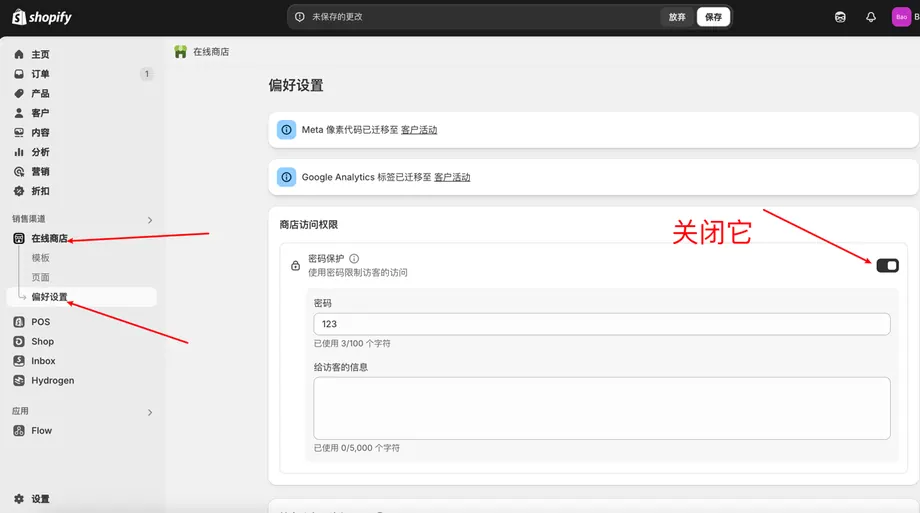
- The Shopify store password page is disabled.
- Has editing privileges for the Facebook page
Once you've confirmed it, let's try linking the accounts.
Step 1
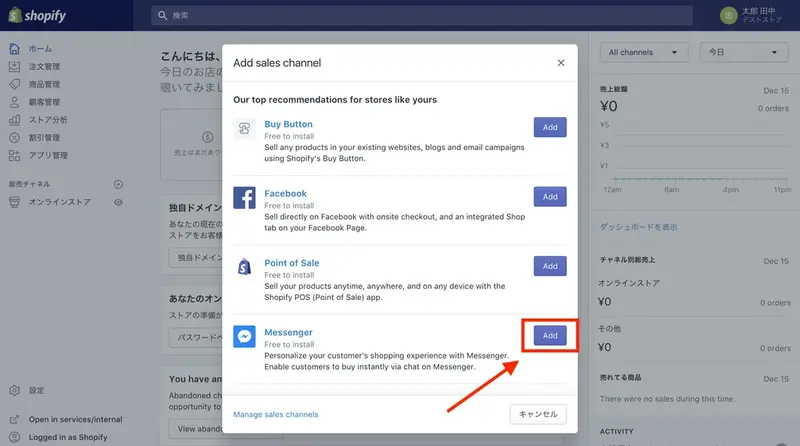
From the admin panel, click the "+" next to "Sales Channels" in the bottom left corner. Then, click "Add" for Messenger.
Step 2
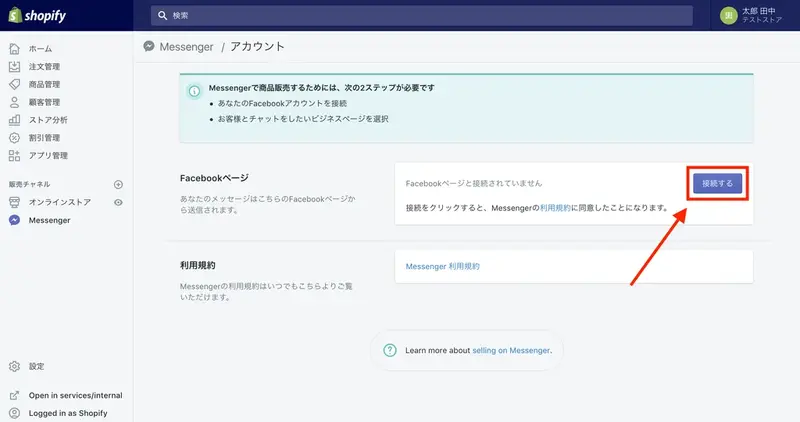
Connect to our Facebook page. Click "Connect".
Step 3
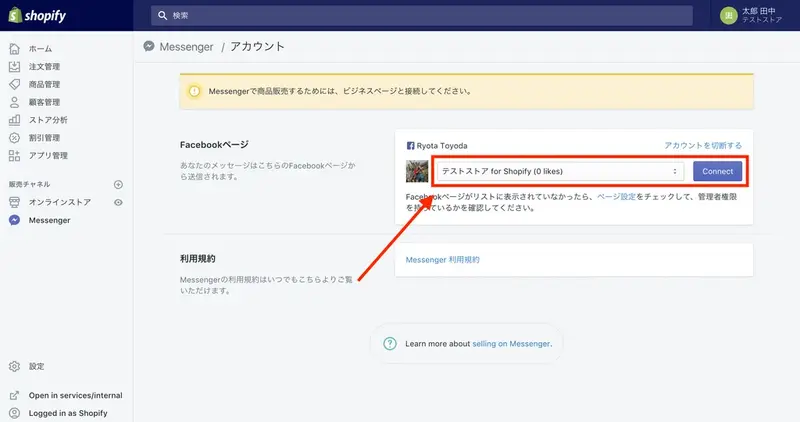
Select the Facebook page you want to connect to and press "Connect".
Step 4
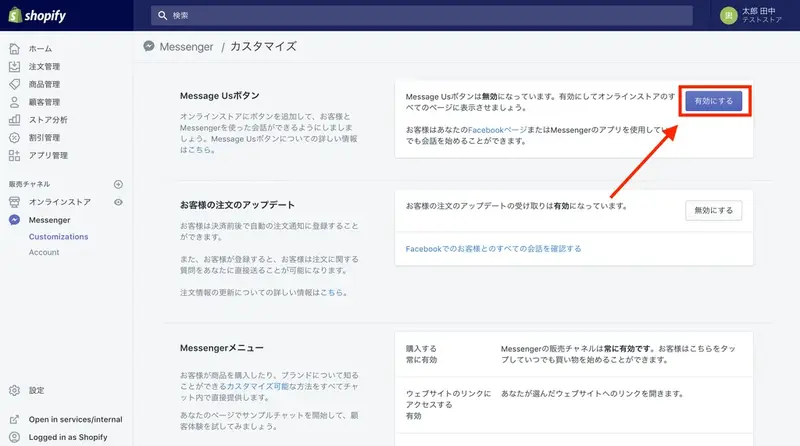
If the connection is successful, the following screen will be displayed.
From here you can edit text, buttons, and other elements on Messenger.
Let's start by setting up the Message Us button.
The Message Us button is a button that appears on every page of your store. When a customer clicks this button, they can immediately start communicating with you via the store's Messenger app.
Step 5
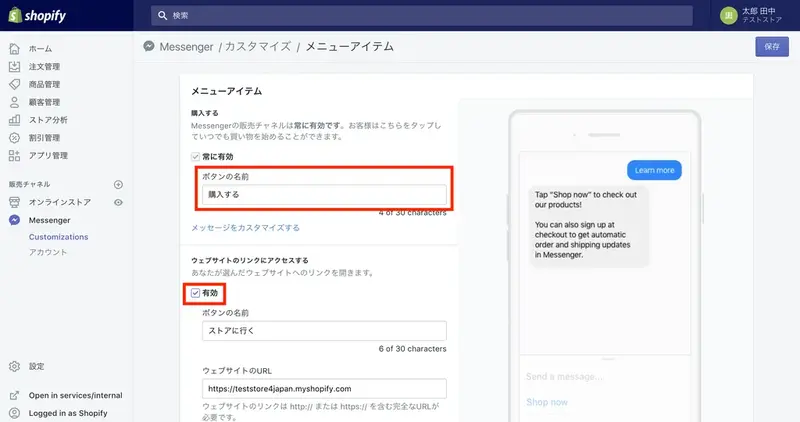
Next, let's change the text on the buttons displayed on Messenger. You can create buttons with your own preferred text. You might also want to set text that matches your store's brand.
Additionally, checking a checkbox will display the corresponding button. Please uncheck any buttons you do not wish to display.
Once you've finished editing and saving the button, let's edit the message that will be automatically sent to customers. You can change all the text to whatever you like and show it to your customers.
Once you've finished all the editing up to this point, try it out as if you were actually a customer. Use the Messenger app to check that the text is correct and that the buttons work properly.
What did you think?
Why not offer your customers a new way to purchase products through integration with Messenger?
If you're interested, please click here to add Messenger to your store!
Sell products on Messenger
Share this article
- Share on Facebook
- Share on X
- Share on LinkedIn