跨境独立站开店
How to Grant, Review and Revoke Shopify Collaborator Access
Let a partner request access with their own account. This guide covers finding your request code, approving the right role and removing access after the project.
How to use employees and collaborators respectively
Internal long-term members typically use store users and the roles assigned to them. External partners request access to specific stores through their own Partner accounts. The invitation and access management processes differ for these two roles. For a theme redesign, specifying the delivery goal as "adjusting the homepage and product templates" helps in defining the scope of authorization.
Shop owner obtains request code
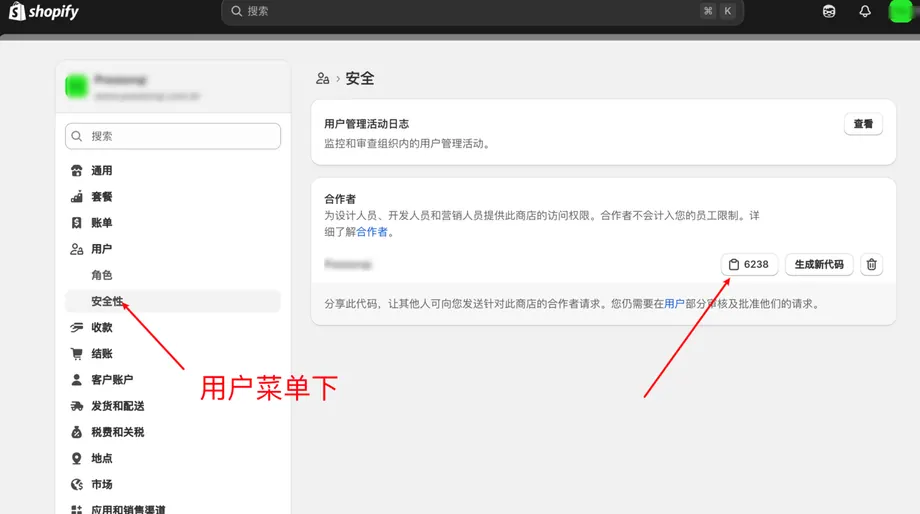
Log in to the backend using an account authorized to manage users. In "Settings → Users," find the Partner Request Code under Security or the Partners section. Record the correct store address, typically the store's myshopify.com address. Send the address and the four-digit request code to the partner via a private channel agreed upon by both parties. The code is used to initiate the application; store approval is still required.
Collaborator initiates request
The other party selects "Request Access to Store" on their partner interface, fills in the target store and code, and selects permissions according to the task. When it involves theme modification, clearly specify the required theme and sales channels; when it involves customer service, specify which orders need to be handled. The application should clearly state the responsible person and scope of work to avoid store owners receiving unidentifiable applications.
Approval after verifying identity and role
In the store's backend, go to the "Users" section to view pending requests and compare the applicant, organization, and target store against the pre-agreed information. Check the read and edit permissions for each role; if you can narrow down the scope by application or channel, retain the items necessary to complete the task. If the requested project requests financial or customer export permissions, return it for clarification or adjustments before accepting it.
Verify permissions based on actual tasks.
Have the other party log into the store using their own account, open the necessary tools, and complete a small, auditable step, such as saving text in an unpublished theme. Record the specific blocked operation if permissions are insufficient, and then adjust the corresponding role. Long-term teams can reuse verified roles, but exceptions should still be checked for different projects each time.
Closing, Rejection, and Abnormal Requests
After delivery, review the change log and retain copies of the subject line and work instructions. Open the corresponding collaborator in the user list and remove their access as prompted on the page; for those still requiring short-term maintenance, reduce their permissions to only the necessary ones. If a request is mistakenly rejected, have the other party resubmit it. In case of code leakage, generate new code and re-examine pending requests and existing collaborators. In case of collaboration disputes, retain delivery and request records and handle them using official support channels.